
How to Synchronize Group Questions
When you run a Facebook group with membership questions, collecting accurate answers is critical, especially if you’re using Group Collector to save data into Google Sheets or send leads to your email autoresponder.
That’s exactly where the Synchronize Group Questions feature comes in.
This feature ensures that Facebook group questions and member answers stay perfectly aligned, even when Facebook changes question order or skips unanswered questions.
Let’s break it down step by step.
What Is “Synchronize Group Questions” in Group Collector?
Synchronize Group Questions pulls your actual Facebook group membership questions into Group Collector and aligns them with the answers submitted by new members.
Facebook sometimes:
- Randomizes the order of questions
- Skips unanswered questions
- Treats Question 3 as Question 2 if Question 2 is unanswered
This can cause answers to land in the wrong columns inside Google Sheets.
Synchronization prevents this issue completely.
Why You Should Use This Feature
Without synchronization:
- Answers may appear under the wrong question
- Data in Google Sheets becomes confusing
- Email automation personalization breaks
- Lead quality drops
With synchronization:
- Each answer goes into the correct column
- Google Sheets stay clean and organized
- Email tools receive accurate data
- Automation works smoothly
When Should You Synchronize Group Questions?
You should use Synchronize Group Questions when:
- You create a new group in Group Collector
- You add, remove, or edit Facebook group questions
- You notice answers appearing in the wrong order
- Facebook updates or rearranges your group questions
Best practice: Sync once after setting up the group and anytime questions change.
How the Synchronization Works
When you click Synchronize Group Questions:
- Group Collector reads your Facebook group questions
- It maps them in the correct order
- It updates the structure used for Google Sheets & integrations
This eliminates Facebook’s random behavior.
How to Use “Synchronize Group Questions” (Step-by-Step)
Step 1: Install the Group Collector Chrome extension
Make sure the Group Collector Chrome extension is installed and active in your browser.
Synchronization will not work without the extension.
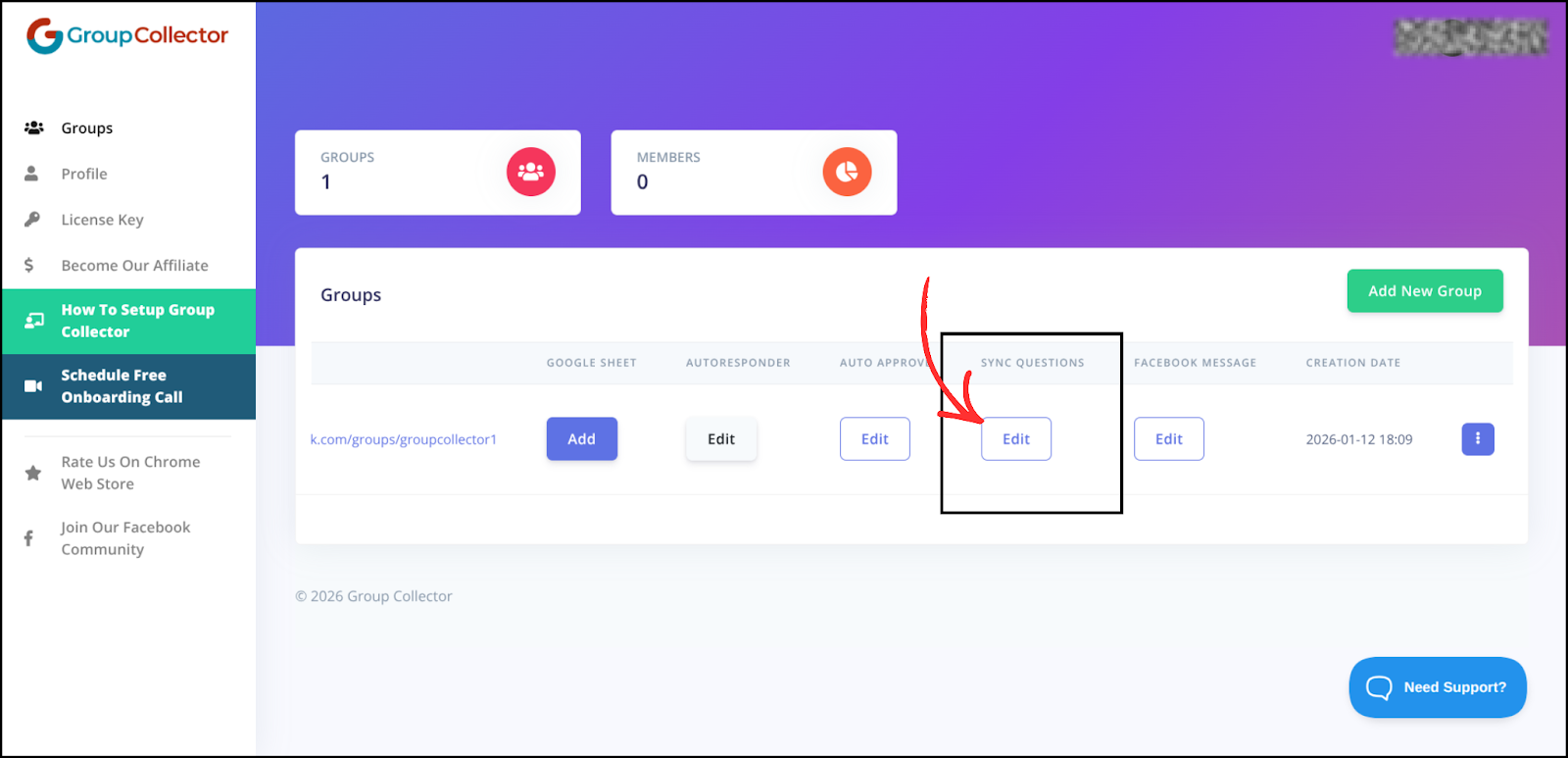
Step 2: Open Sync Questions Columns
- Go to your Group Collector Dashboard
- Select the edit button under the Sync Questions column.
Step 3: Select the Correct Group Type
Under Group Type, select:
- Private → if your Facebook group is private
- Public → if your Facebook group is public
You can find your group type just below your group name on Facebook. Then click the update button to save the group type.
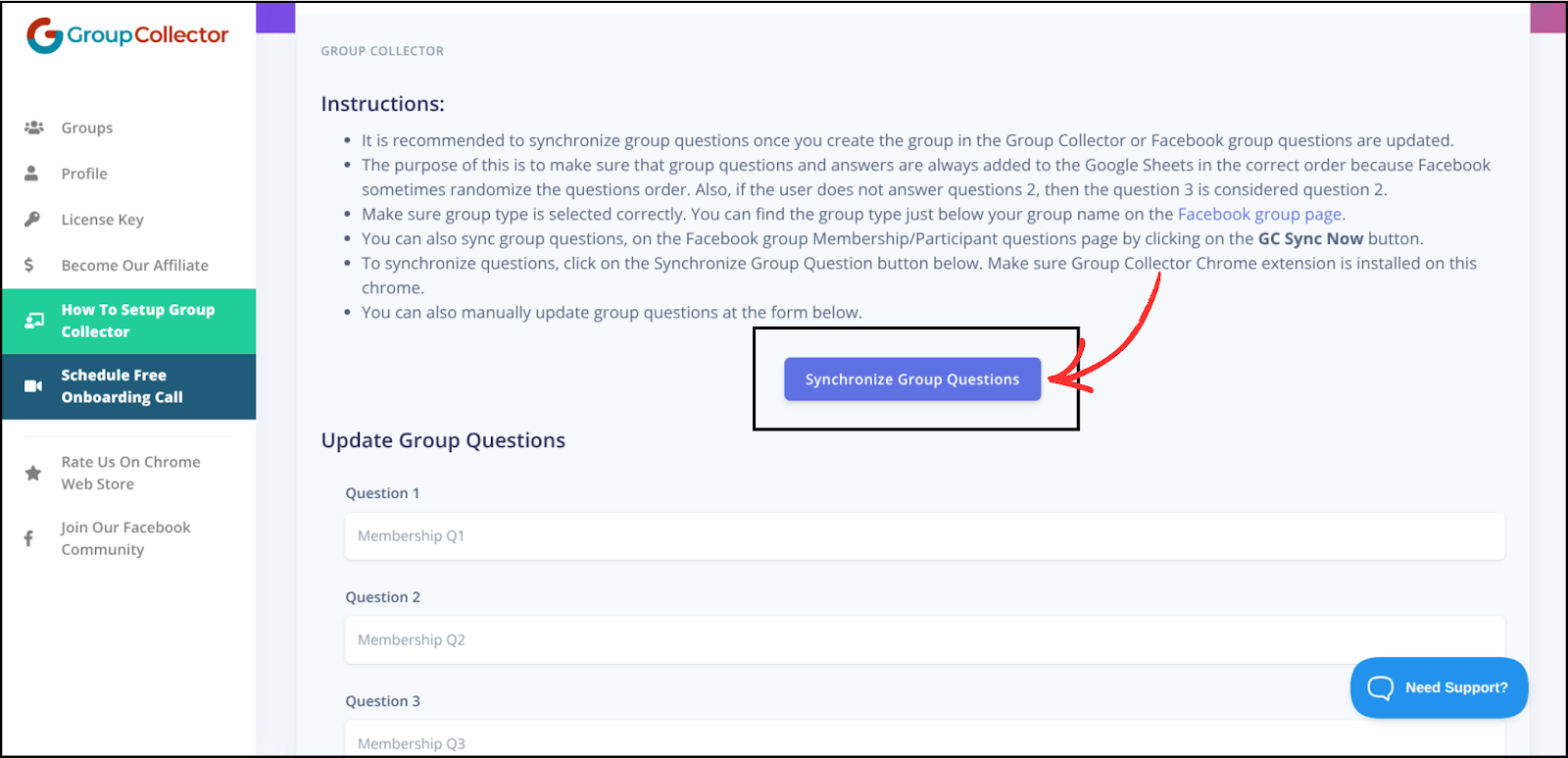
Step 4: Click “Synchronize Group Questions”
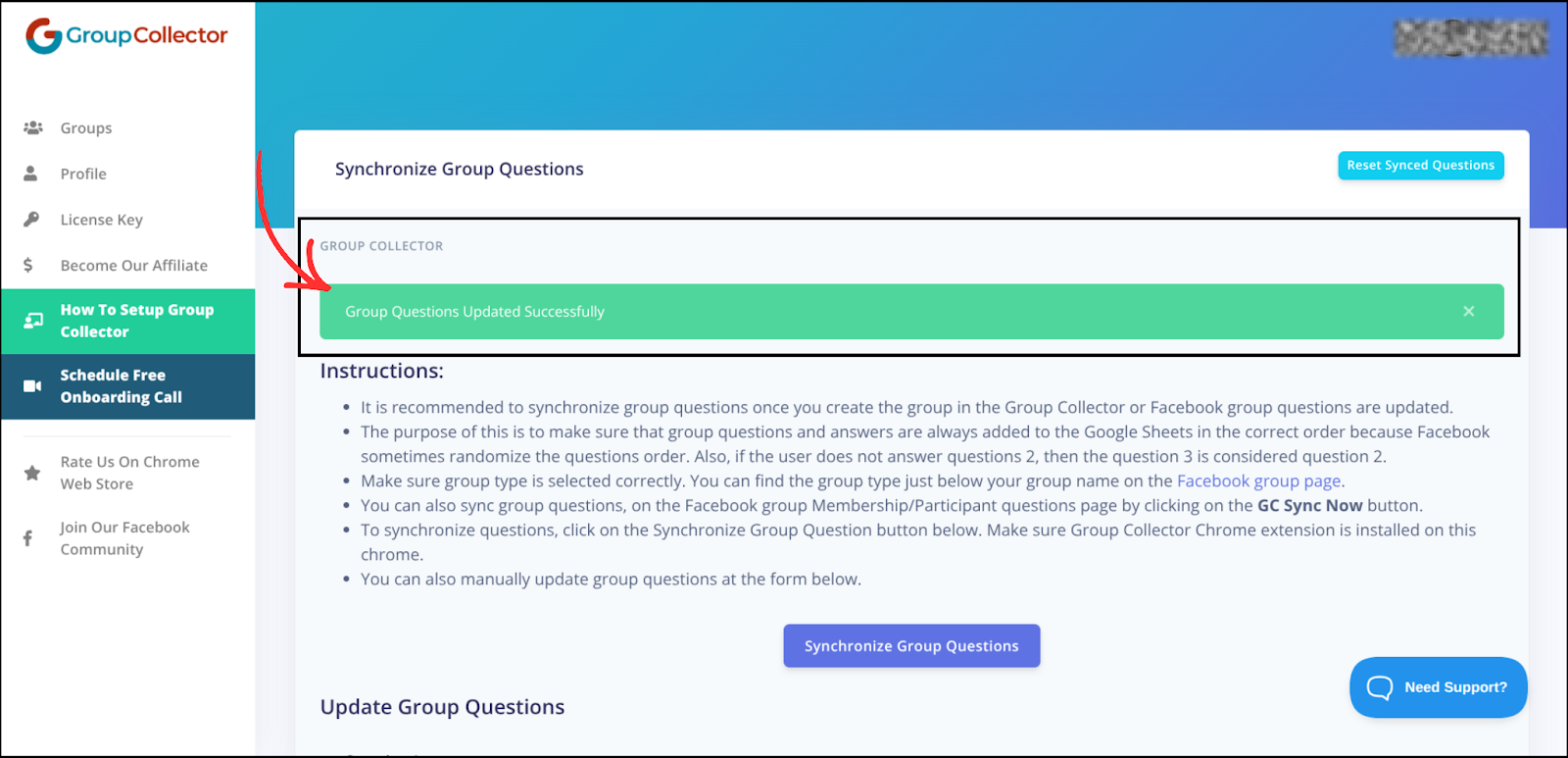
Click the Synchronize Group Questions button.
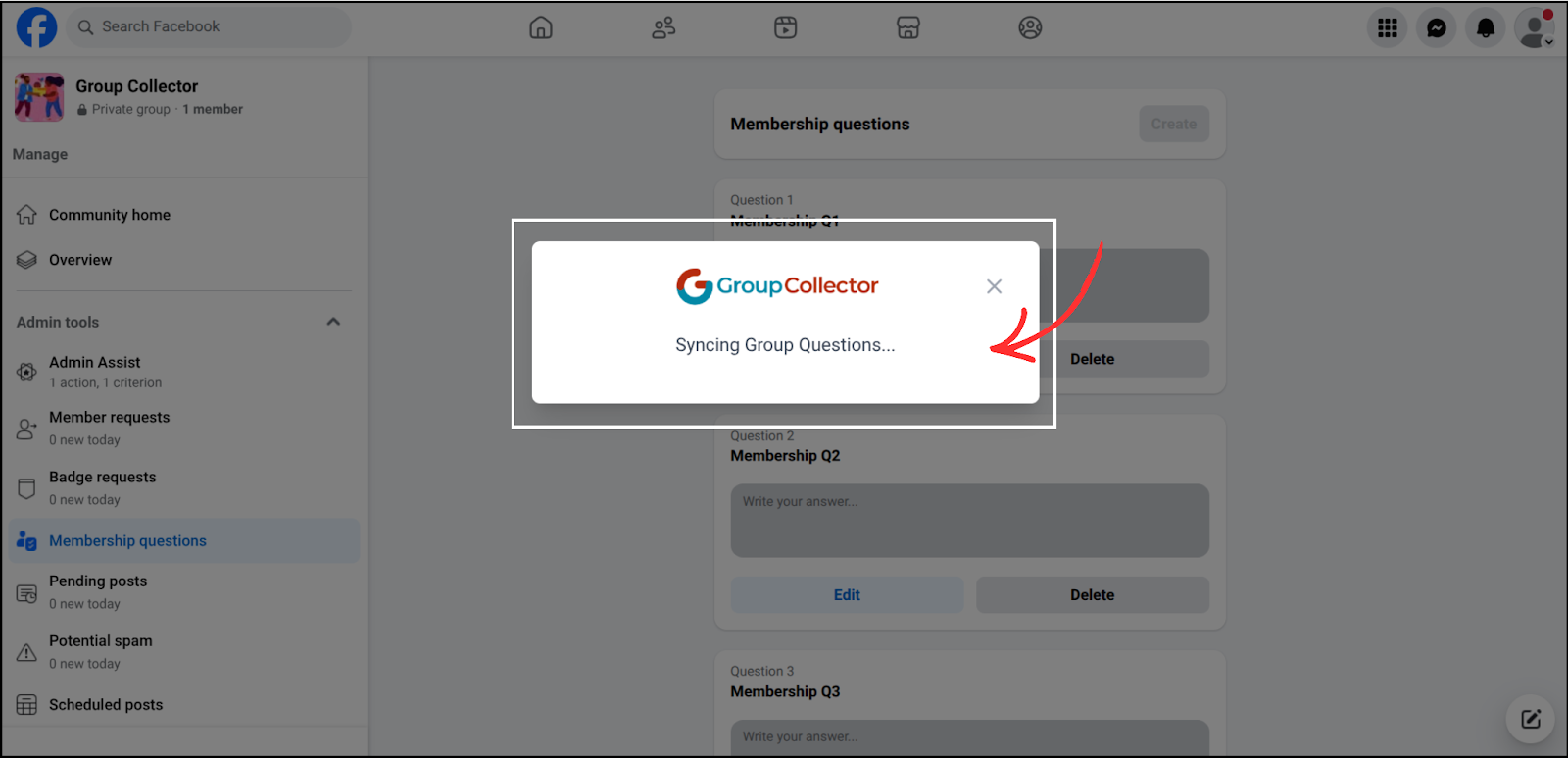
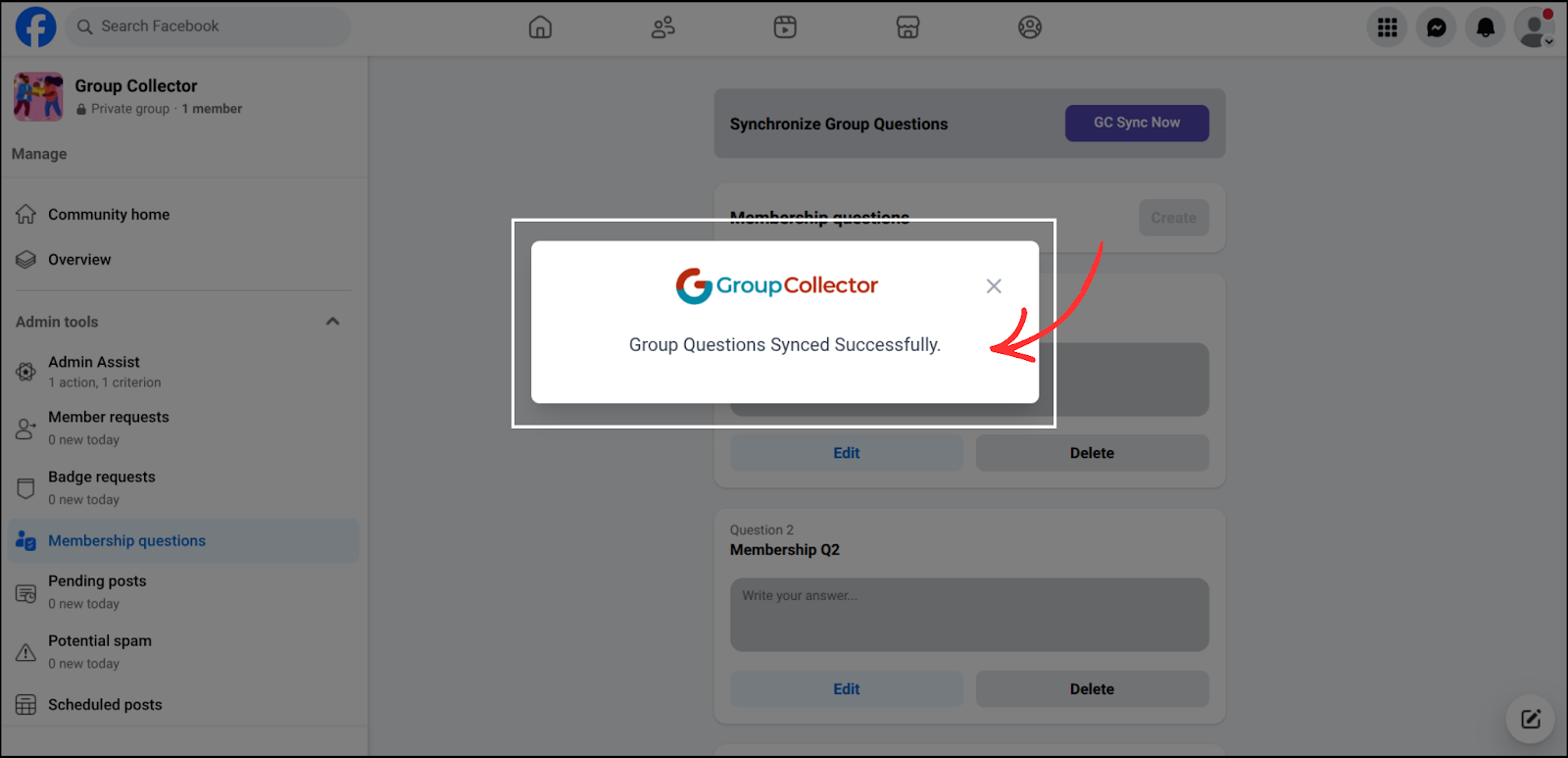
Group Collector will now:
- Fetch all Facebook membership questions
- Align them correctly
- Prepare them for accurate data capture
Manual Question Update
Below the sync button, you’ll see Update Group Questions fields:
- Question 1
- Question 2
- Question 3
You can:
- Manually edit questions
- Fix wording differences
- Match the exact Facebook question text
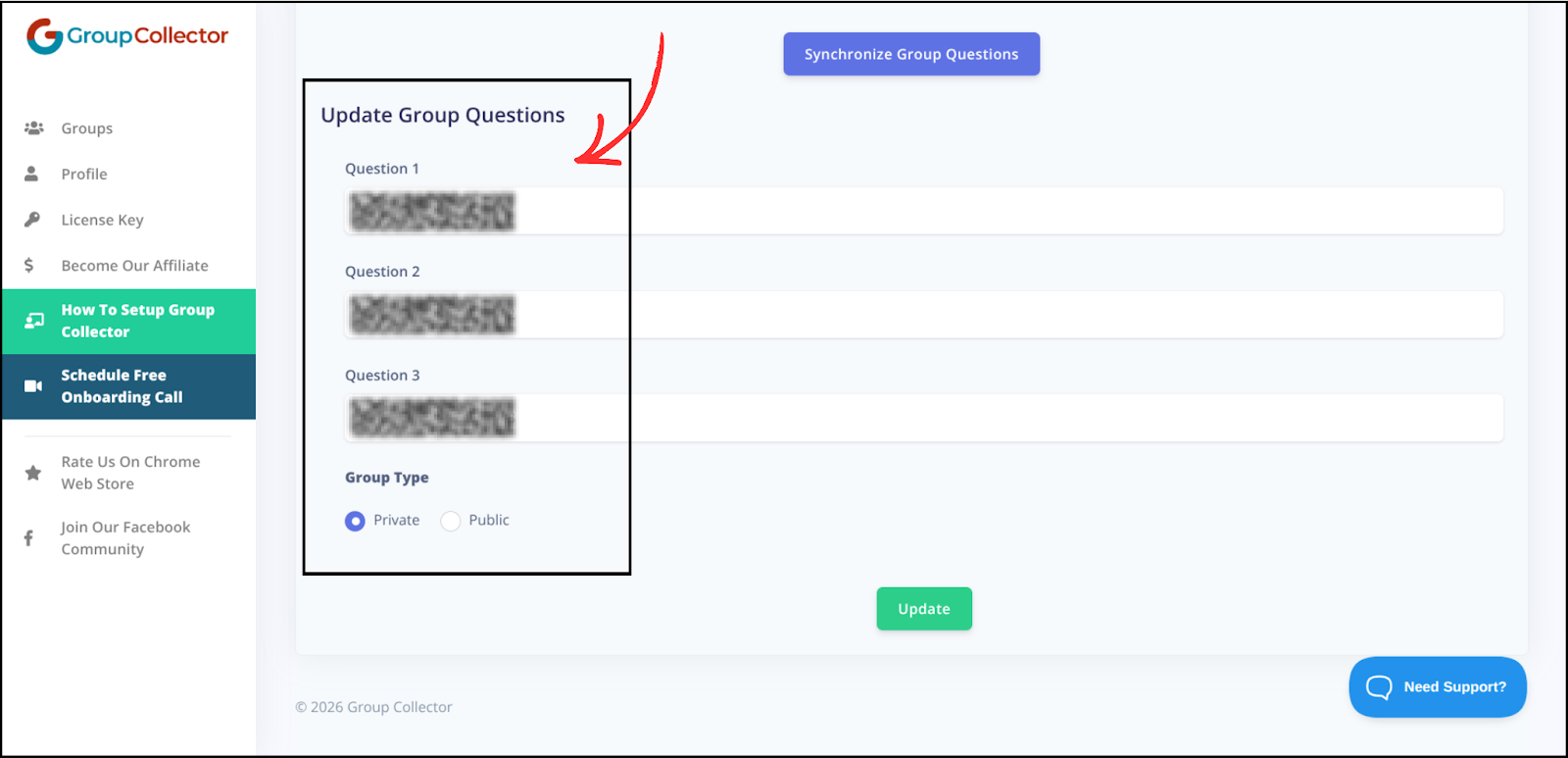
After editing, click Update to save changes. Group Questions will be updated successfully.
Sync Directly from Facebook
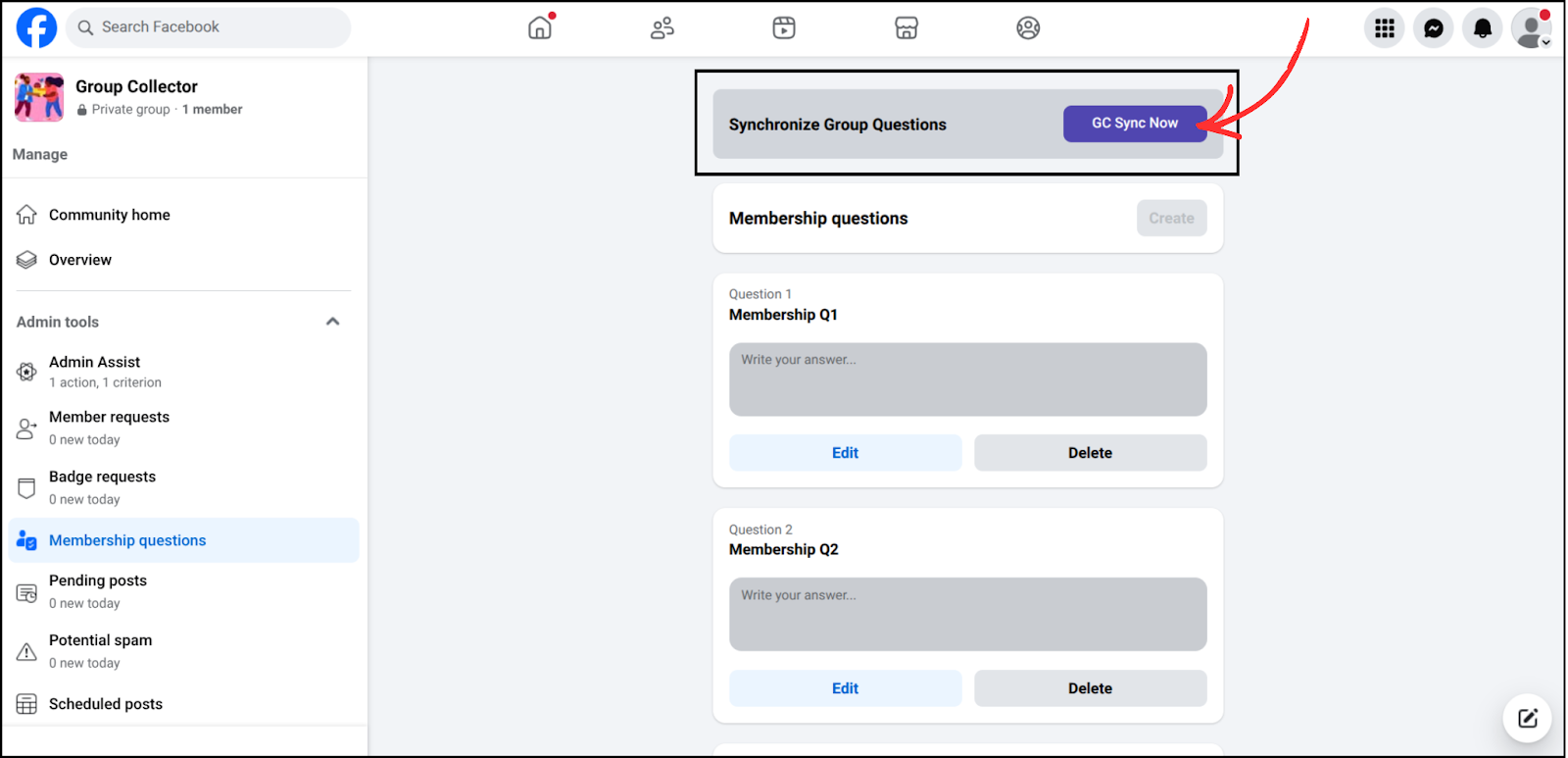
You can also synchronize your group questions directly from Facebook, but first, you must log in to the Group Collector Chrome extension using your License Key.
- Go to your Facebook group
- Open Membership / Participant Questions
- Click the GC Sync Now button (Make sure the Group Collector Chrome extension is installed and you are logged in)
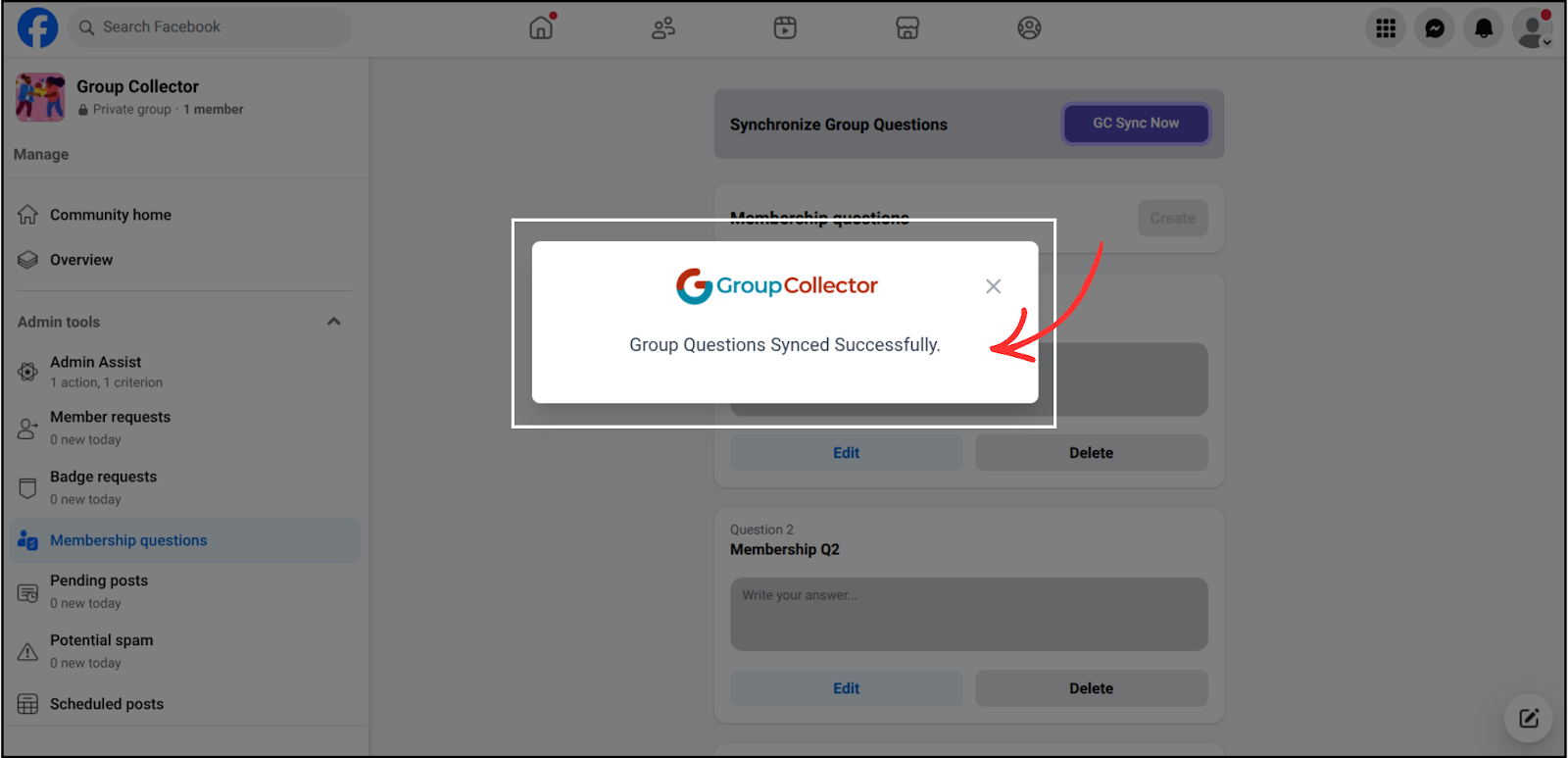
This instantly syncs questions.
What Happens After Synchronization?
Once synced:
- New member answers are stored correctly
- Google Sheets columns match the right questions
- Email integrations receive clean data
- No manual correction needed
Everything runs automatically in the background.