
How to Export Existing Facebook Group Member Answers
The Export Members feature in Group Collector lets you collect and download answers from Facebook group members who are already approved into the group. Instead of manually checking profiles or copying answers, you can export selected members' answers to the Google Sheet.
This feature is useful when you want to retrieve member answers, keep records, or use the data outside Group Collector.
Step 1: Open the Members/People Section in Your Facebook Group
- Go to your Facebook group
- Click on Members for private groups and People for public groups
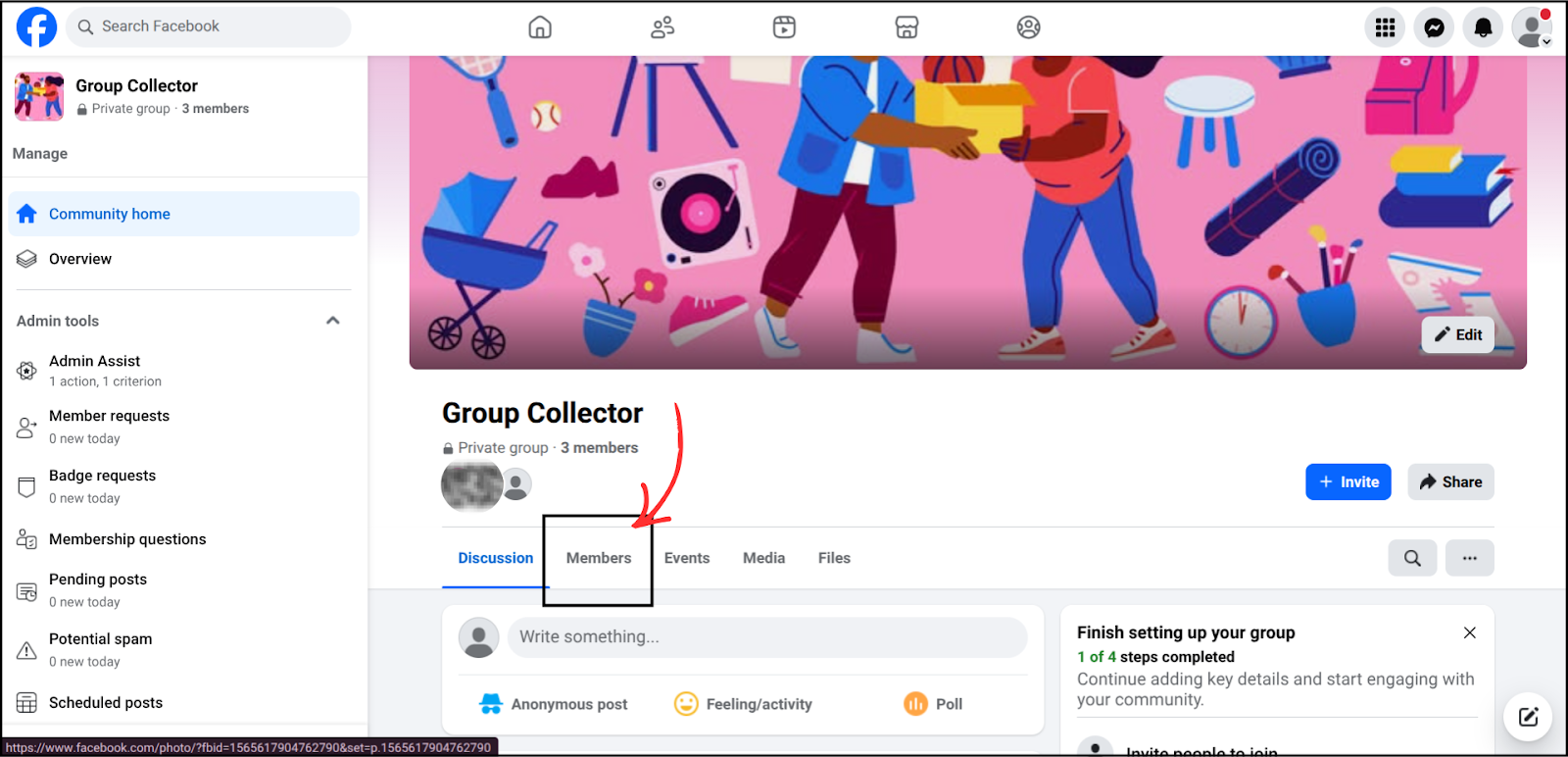
On the top menu bar of this page, you will see multiple options. One of these options is Export Selected.
Step 2: Select Members to Export
- Select the members you want to export by clicking the checkbox next to their names
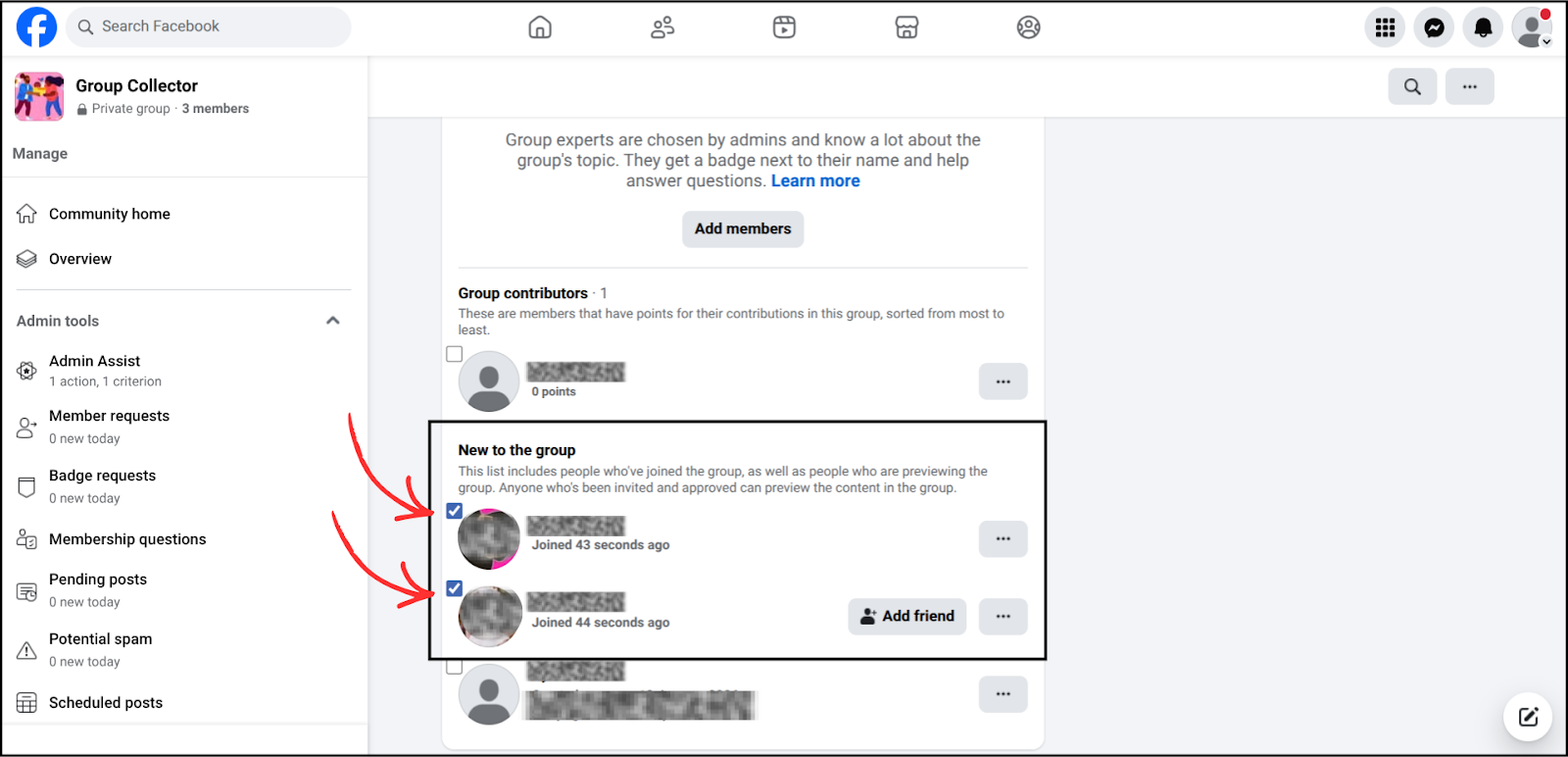
- Once selected, click on Export Selected from the top menu
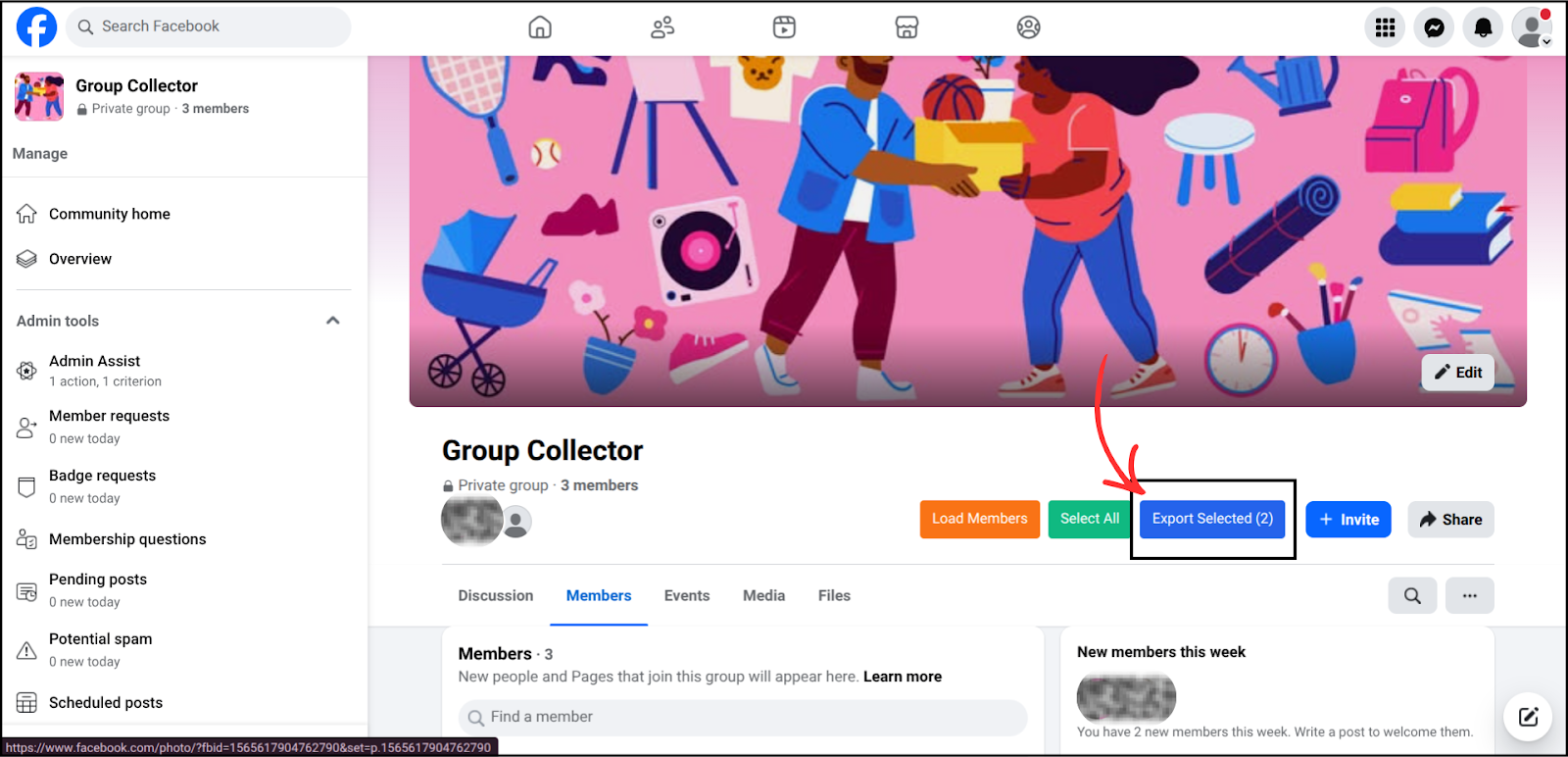
After clicking Export Selected, Group Collector immediately starts exporting the selected members. You don’t need to do anything else on this page.
Step 3: Export Process Starts
- Group Collector collects the selected members’ data
- The export runs automatically
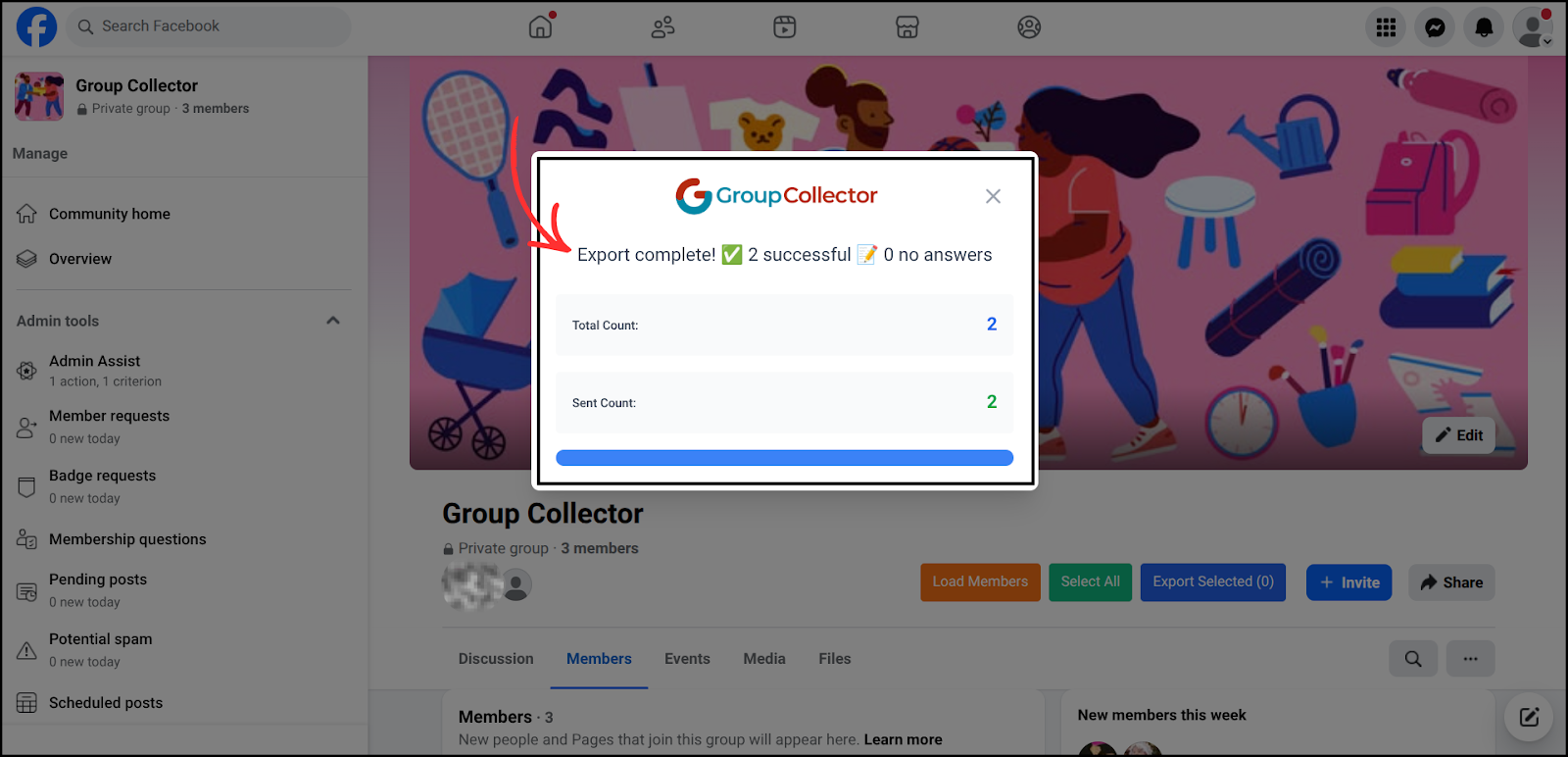
- The data is safely saved inside your Group Collector account
You can continue working while the export completes.
Step 4: Access Exported Members in the Group Collector Dashboard
Once members are exported:
- Go to the Group Collector main dashboard
- Click on your group name
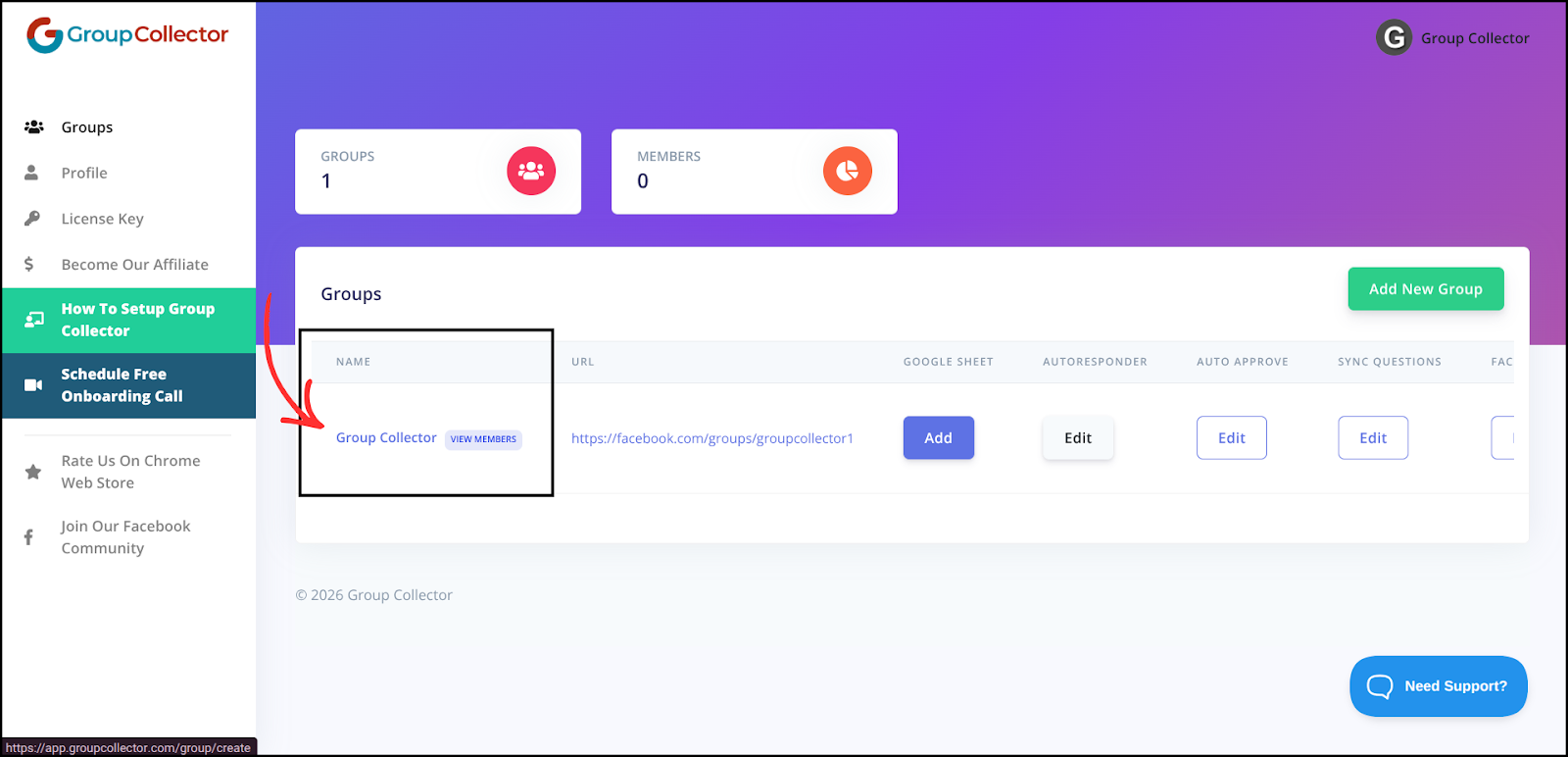
This will open a complete list of all members. You can view the exported member answers along with all the other members.
Step 5: Connect Exported Members to Google Sheets in Group Collector
If you don't have a Google Sheet attached to your group in Group Collector, you can easily attach it by following the instructions below. If you already have it attached, you can skip this step.
Here’s how it works:
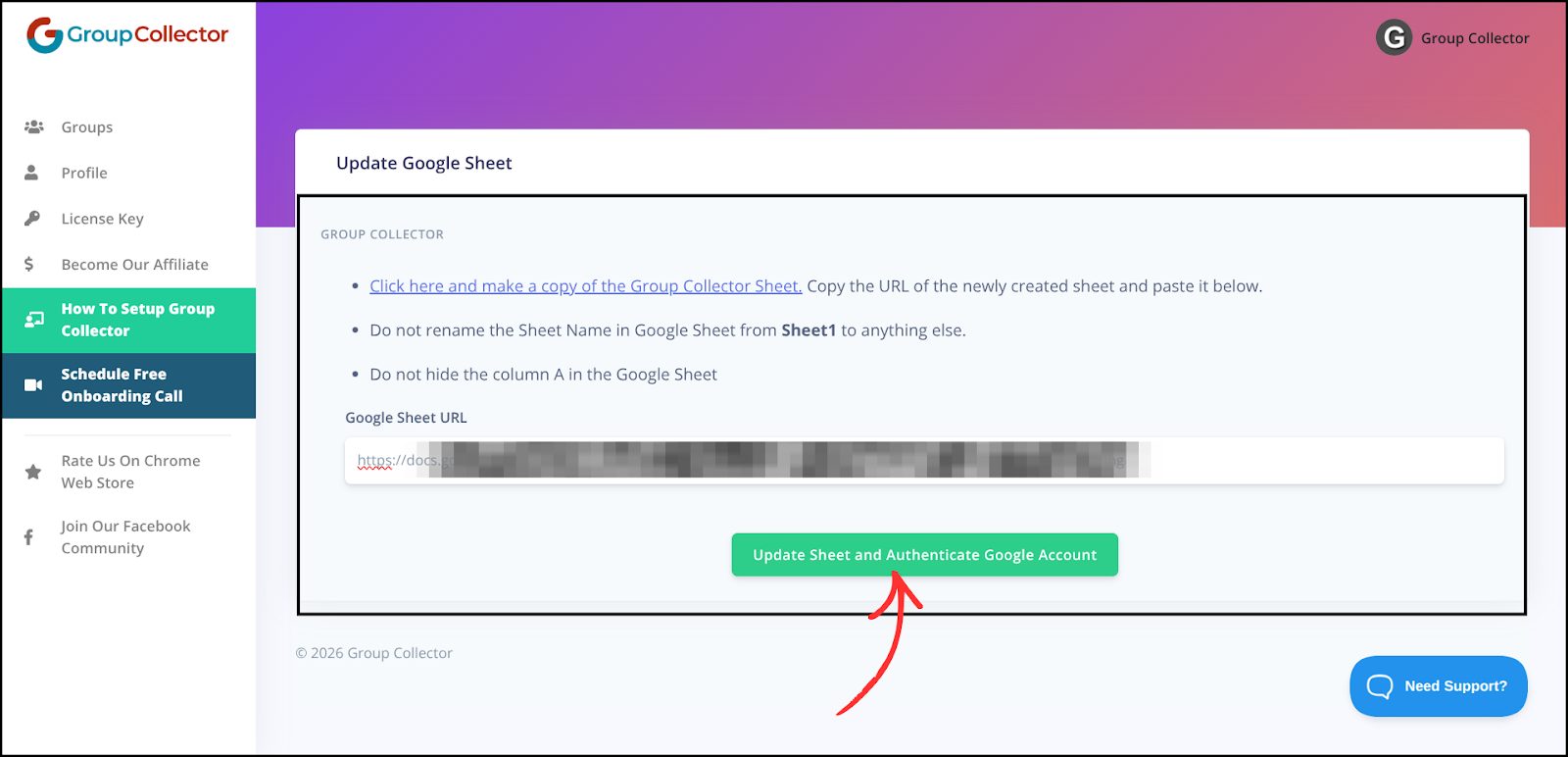
- Click here to make a copy of the Google Sheet template, then copy the URL of your newly created sheet.
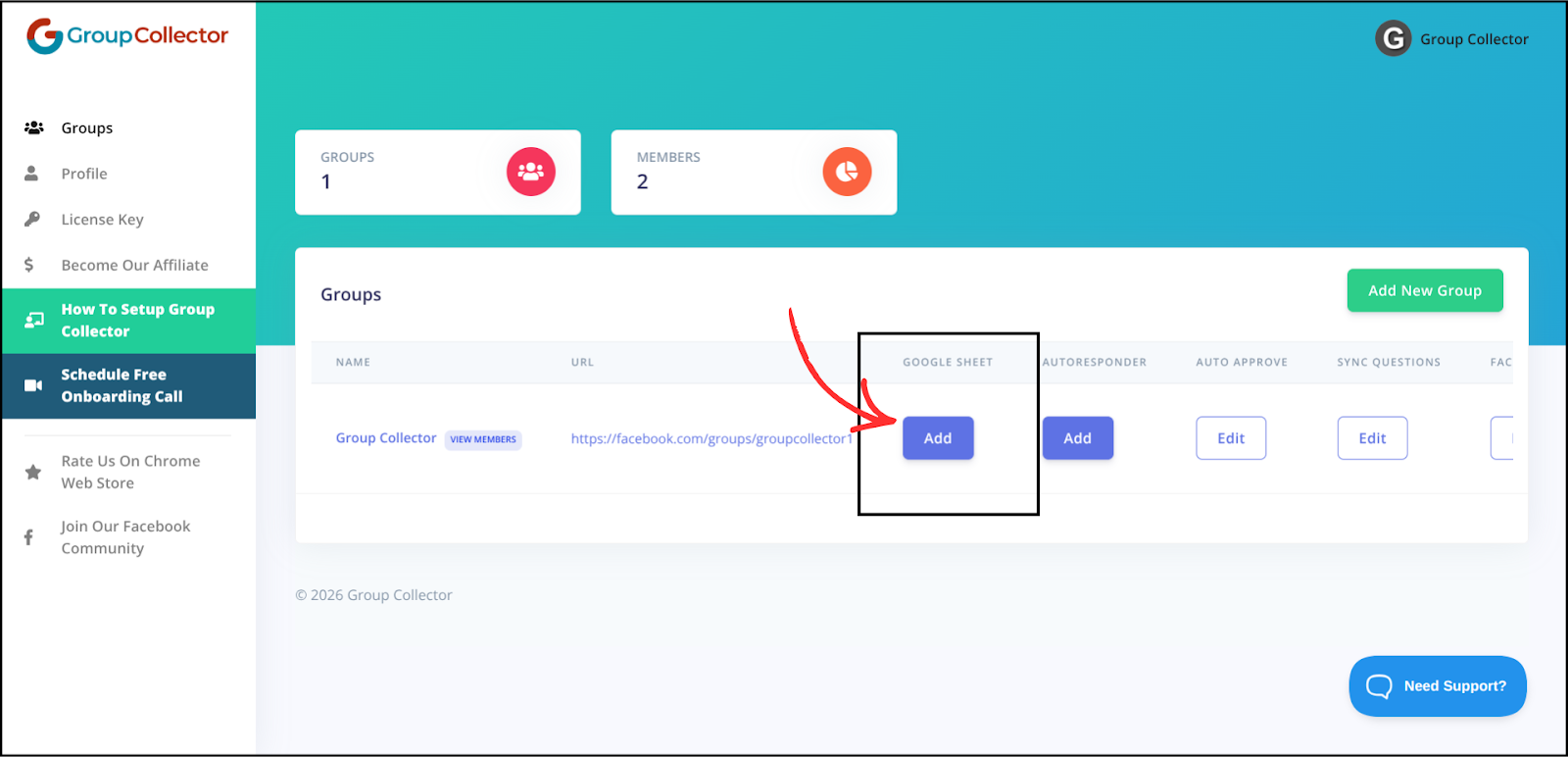
- Go to the Group Collector main dashboard
- Under the Google Sheet section, click Add
- Paste the Google Sheet link
- Click Update Sheet and Authenticate Google Account.
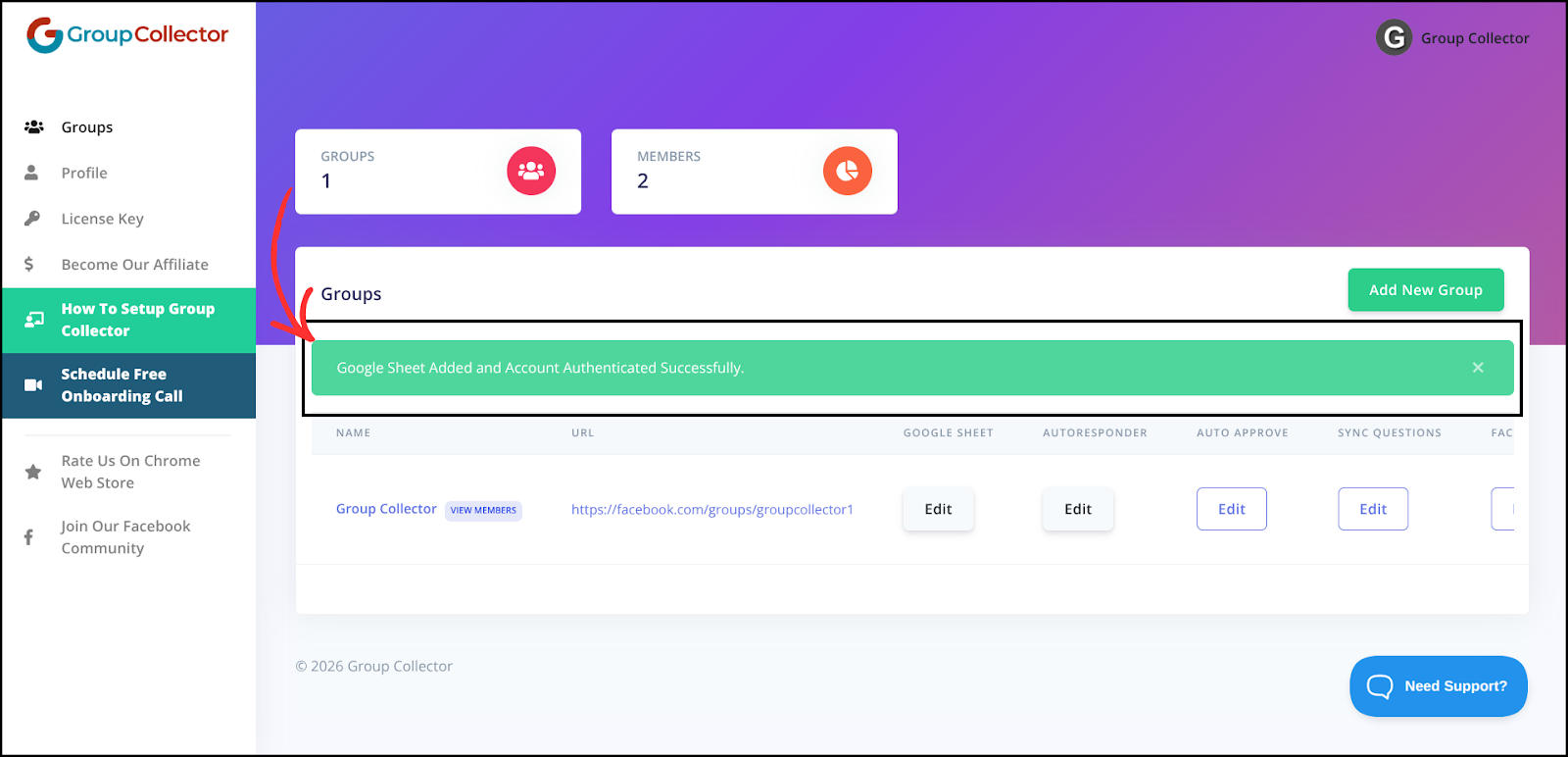
Once your account is verified, the Google Sheet will be successfully connected inside Group Collector and will start receiving exported member data.
Step 6: View Exported Member Answers in Google Sheet
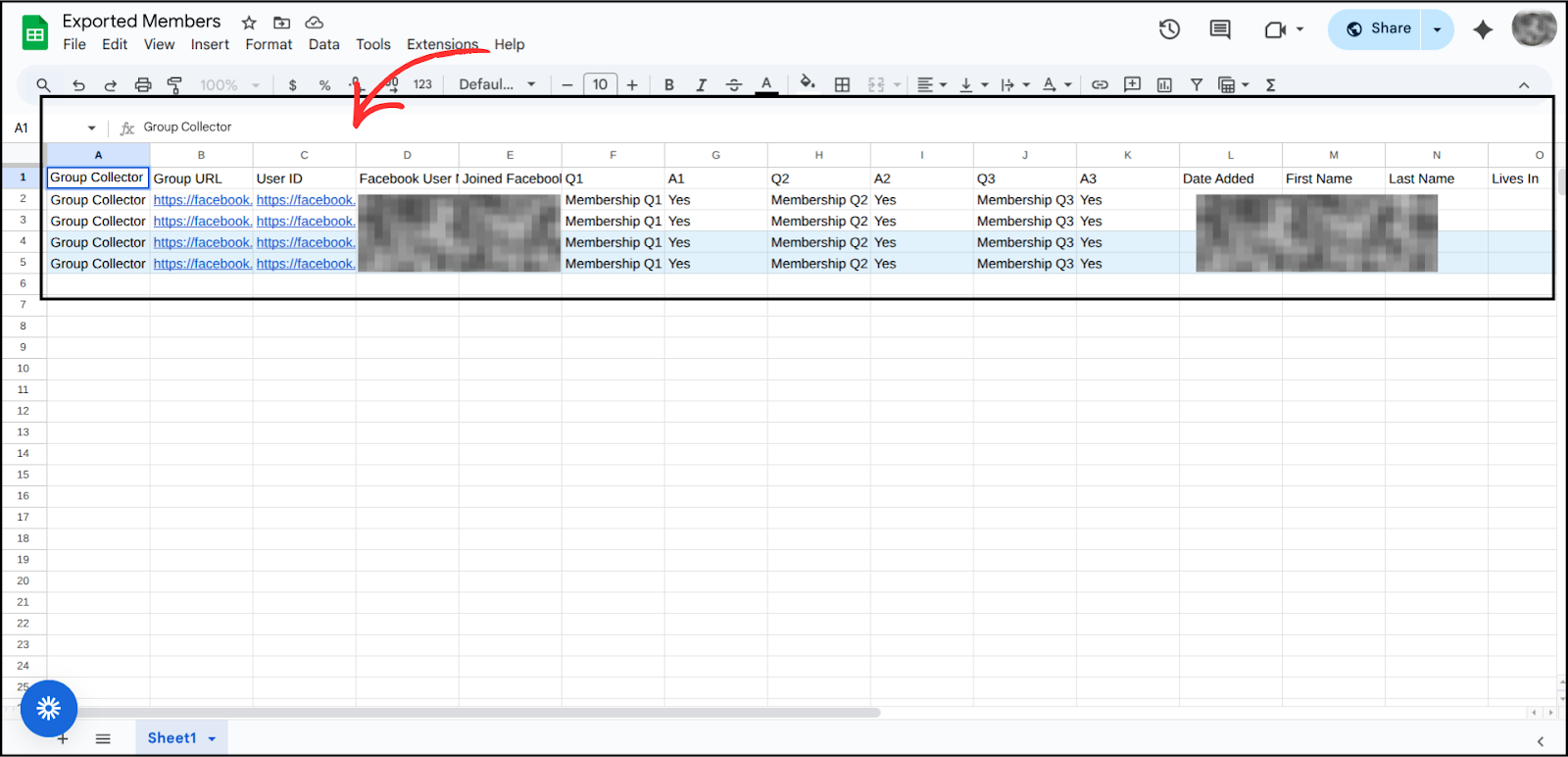
Once exported, member answers automatically appear in your connected Google Sheet. Exported members are highlighted with a light blue background (#E3F2FD), making them easy to distinguish from members approved through GC Approve.
What You Can Do with Exported Data
- Review membership answers in one place
- Keep records of approved or selected members
- Upload data to external tools (if needed)
- Maintain a backup of group member information
Important Notes
- Only selected members are exported
- Some fields may be empty if members did not provide information
- Export time depends on the number of selected members