
How to Connect Group Collector with VBOUT
If you want approved Facebook group members automatically added to your VBOUT contact list, you need to connect VBOUT as an autoresponder in Group Collector.
This integration lets you capture leads in real time and use them for email marketing, automation, and campaigns without manual import.
What You Need Before Starting
Before setting up the integration, make sure you have the following:
Required
- VBOUT API Key
- VBOUT List ID
Make Sure That:
- Your VBOUT account is active
- At least one contact list exists in VBOUT
- Your Facebook group is connected to Group Collector
- Membership questions are properly configured in your Facebook group
Step 1: Get API Key from VBOUT
The API key allows Group Collector to securely send approved members to your VBOUT account.
Steps:
- Log in to your VBOUT dashboard.
- In the top-right corner, click the profile icon.

- A dropdown menu will appear, click Settings.

- A new page will open.
- From the left panel menu, click API Integration.

- The API Integration section will appear.
- Click the eye icon next to the API Key to reveal it.

- Copy and securely save the API Key.
Important: Keep your API key private. Do not share it publicly.
Step 2: Get VBOUT List ID
The List ID tells Group Collector exactly where new contacts should be added inside VBOUT.
Steps:
- From the main VBOUT dashboard, click Contacts in the left panel menu.

- A contacts page will open.
- On the upper bar, click Lists.

- Your existing lists will appear.
- Click on the list name.

Finding the List ID:
- Check the browser URL (address bar).
- Your List ID is the number that appears between
/Contacts/and/?in the URL. For example:https://app.vbout.com/Contacts/XXXXXX/?idis=list— theXXXXXXis your List ID.

- Copy and save this number.
To Create a New List (if you don't already have one):
- Click Create List.
- Enter the list name and details.
- Save the list.
- Open the newly created list and copy its List ID from the URL.
Step 3: Add VBOUT as an Autoresponder in Group Collector
Open the Group Collector dashboard. You will see the Autoresponder option. Click Add to add an autoresponder.
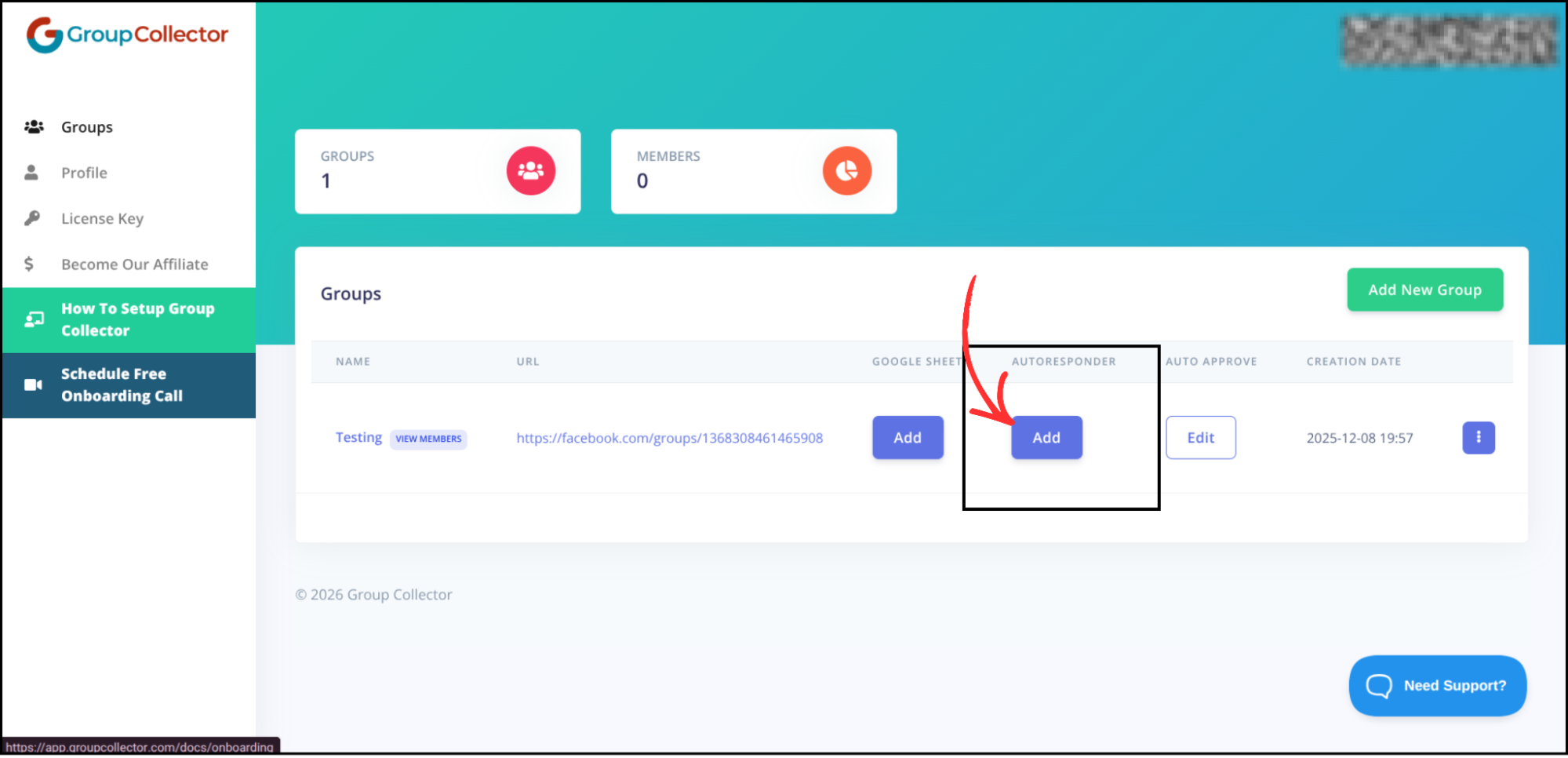
Select VBOUT from the autoresponder list.

Step 4: Enter VBOUT Credentials
After selecting VBOUT, enter the required details.
Required Fields:
- API Key → Paste your VBOUT API Key
- List ID → Paste your VBOUT List ID

Make sure there are no extra spaces when pasting.
Step 5: Verify and Save Integration
- Click Verify & Update.
- Group Collector will validate the API key and List ID.

- Once verified, VBOUT will be successfully added as an autoresponder.

Final Result: What Happens After Integration
Once the integration is complete:
- Approved Facebook group members are automatically added to your VBOUT list
- Leads sync in real time
- Contacts are ready for email marketing and automation
- No manual CSV import required
Common Mistakes to Avoid
- Using an incorrect List ID
- Copying extra characters from the URL
- Revoking API access after setup
- Not testing the integration
Best Practices
- Use one API key per integration
- Test with a sample approved member
- Organize lists by campaign
- Review API access periodically