
How to Connect Group Collector with Webhook
If you want to send approved Facebook group members from Group Collector to any external system, CRM, or custom autoresponder, you can use Webhook as an autoresponder.
This setup allows Group Collector to automatically send member data (email, name, answers, etc.) to your webhook URL in real time.
What You Need Before Starting
Make sure you have:
- A working webhook URL (server endpoint)
- HTTPS-enabled URL (strongly recommended)
- Facebook group already connected to Group Collector
- Membership questions are properly configured
Step 1: Open Autoresponder Settings in Group Collector
- Log in to your Group Collector dashboard.
- Click Add button for the Autoresponder.
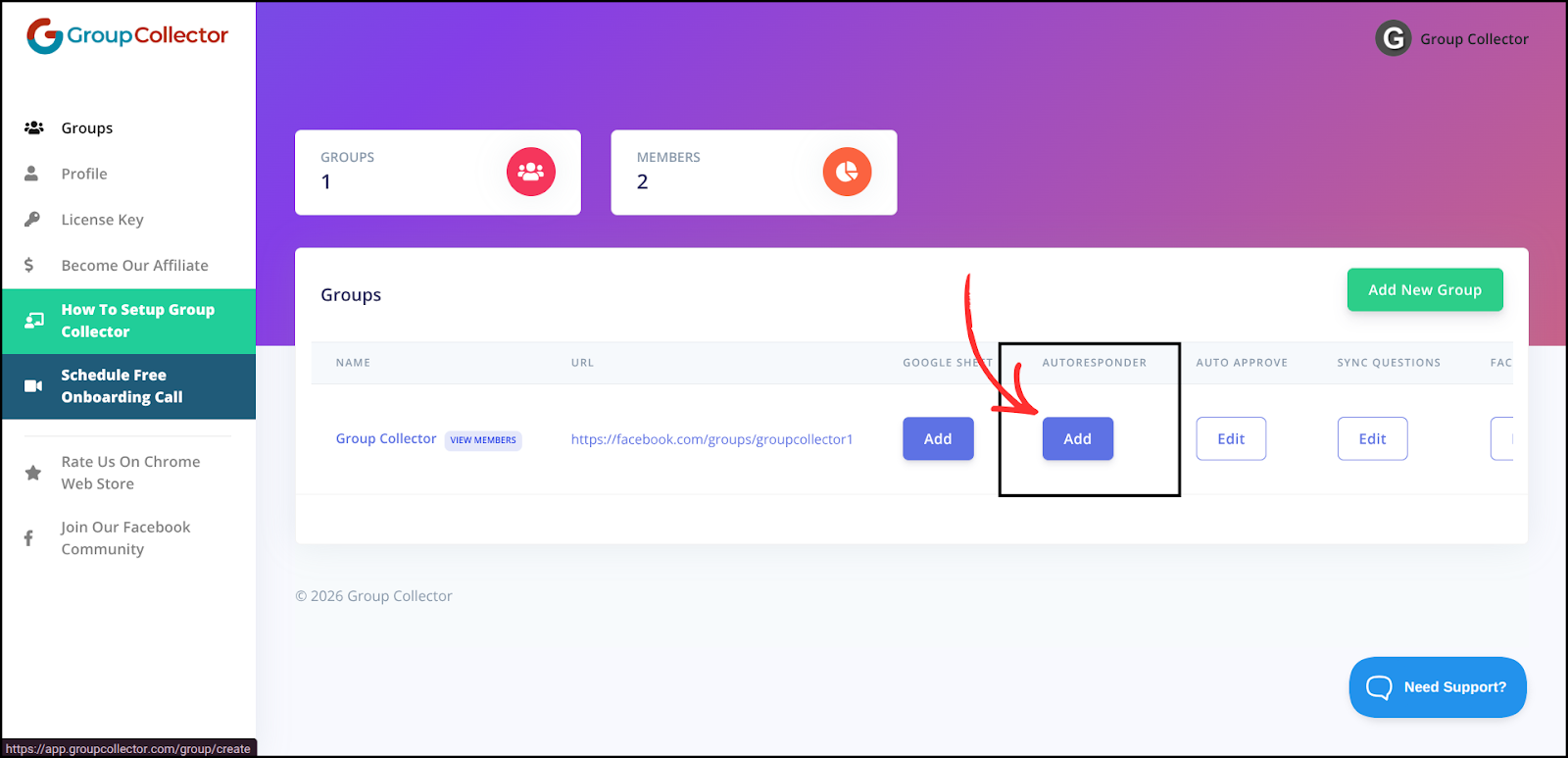
- From the list, select Webhook.

Step 2: Enter Webhook URL
- In the Webhook URL field, paste your full webhook endpoint. Example: https://yourdomain.com/api/webhook
- Ensure the URL is:
- Publicly accessible
- HTTPS-secured
Group Collector will send member data to this URL once the webhook is triggered.
Step 3: Configure Email Trigger Condition
You'll see the option:
"Trigger Webhook Only If Email Exists in Approved Member Answers?"
- Select Yes (recommended) if you only want the webhook to be triggered when a user enters an email in one of the membership question answers.
- Select No if you want the webhook to always trigger whether the user enters an email or not

Step 4: Select Data Fields to Send
Choose the data fields you want to include in the webhook payload. Each selected field can also be assigned a custom property name.
Custom field names must be:
- Unique
- Less than 25 characters
- Contain only letters, numbers, underscores (_), or hyphens (-)
Commonly Used Fields
- First Name → first_name
- Last Name → last_name
- Full Name → full_name
- Email → email
These fields are typically enabled for most integrations.

Step 5: Send Membership Questions & Answers (Optional)
If your group uses membership questions, you can send them as well. Select the Question 1, Answer 1, Question 2, Answer 2, Question 3, and Answer 3 fields. Once updated, Group Collector will also send these fields to the webhook. This is useful for segmentation, tagging, or automation rules in your autoresponder.
Step 6: Save the Webhook Autoresponder
- Click Update.
- The webhook will be added successfully as an autoresponder in Group Collector.
- You can also click on the Trigger Test Webhook and Update button to trigger the webhook with test data instantly.

Step 7: Test the Webhook Integration
- Approve a test member in your Facebook group.
- Check your server or autoresponder logs.
- Confirm the webhook payload is received.
- Verify that your autoresponder automation or email is triggered.
Step 8: Monitor & Troubleshoot
- Monitor webhook delivery logs on your server
- Ensure your endpoint returns a 200 OK response
- Fix any field mapping or validation errors
- Do not block or regenerate the webhook URL unless required
Final Result
Once saved:
- Approved group members will be sent to your webhook URL
- The selected fields (example: first name, last name, full name, and email) will be delivered automatically
- The webhook autoresponder will be active and ready to use
Common Mistakes to Avoid
- Using a non-HTTPS URL — some systems block HTTP endpoints
- Incorrect field mapping — double-check custom field names
- Webhook triggers without email — enable email trigger option
- Not testing first — always approve a test member to confirm integration
Best Practices
- Use descriptive custom field names for easier mapping in your system
- Test with a single member first to ensure correct data delivery
- Keep the webhook URL private to prevent unauthorized access
- Monitor logs regularly to ensure no data is missed
- Include membership questions if you want advanced segmentation