
How to Connect Group Collector with GoHighLevel
If you want approved Facebook group members to be automatically added to GoHighLevel, you need to connect GHL as an autoresponder in Group Collector using a Location ID and Access Token.
This integration allows you to:
- Capture Facebook group leads automatically
- Send contacts directly into GHL
- Assign leads to the correct location
- Trigger tags, workflows, and automations
- Avoid manual CSV imports
What You Need Before Starting
To complete this integration, you'll need:
Required
- GoHighLevel Location ID
- GoHighLevel Access Token
This guide will show you how to get both.
Make Sure That:
- Your GoHighLevel account is active
- You have access to Settings in GHL
- Your Facebook group is connected to Group Collector
Step 1: Get Location ID from GoHighLevel
The Location ID tells Group Collector which business location (sub-account) should receive new contacts.
Steps:
- Log in to your GoHighLevel main dashboard
- From the left panel menu, scroll down and click Settings

- The Business Profile page will open
- Under the General Information section, locate Location ID
- Copy the Location ID

- Save it securely in Notepad / Notes
Important: Each location has a unique Location ID. Make sure you copy the correct one.
Step 2: Create Access Token (Private Integration) in GHL
The access token allows Group Collector to securely send approved group members to your GHL account.
Steps:
- Stay on the Settings page
- Scroll down to Private Integrations

- Click Create New Integration

- Enter a name (e.g., Group Collector Leads)

- Click Next
Select Required Scopes
From the scope list, select only the following:
- Edit Contacts → contacts.write
- View Locations → locations.readonly

These permissions allow Group Collector to:
- Create and update contacts
- Access the correct location
Click the Create button to create the integration.
Copy Access Token:
- Your API Key (Access Token) will be generated

- Copy the token immediately
- Save it securely in Notepad / Notes
Important:
- Do not regenerate this token after setup
- Regenerating the token will disconnect Group Collector
- Keep the token private and secure
Step 3: Add GoHighLevel as an Autoresponder in Group Collector
Now connect GHL inside Group Collector.
Steps:
- Open the Group Collector dashboard
- Click Add button for the Autoresponder
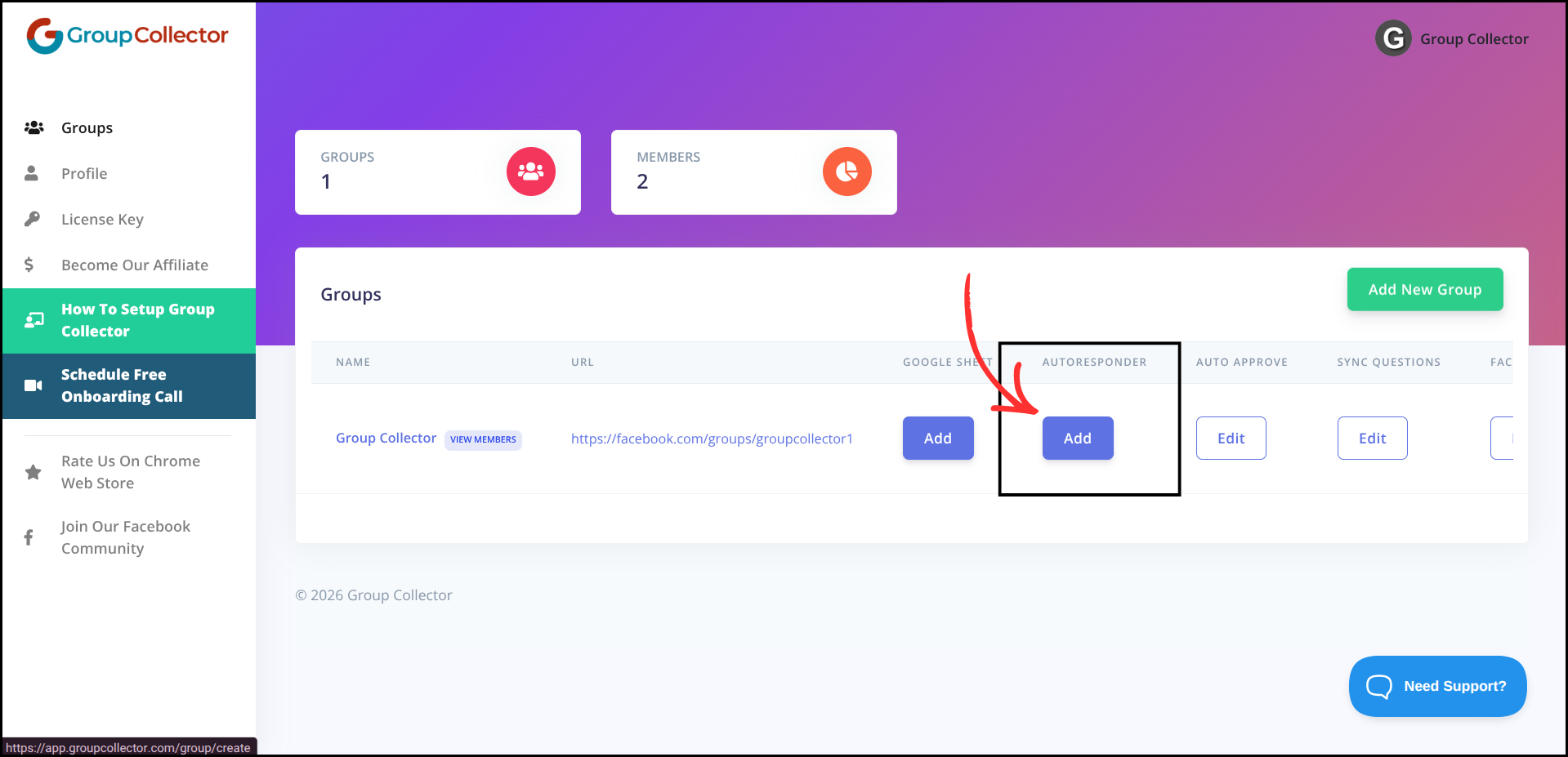
- Select GoHighLevel GHL 2.0 from the autoresponder list
Step 4: Enter GHL Credentials in Group Collector
After selecting GoHighLevel GHL 2.0, enter the details.
Required Fields:
- Location ID → Paste your GHL Location ID
- Access Token → Paste your GHL API Key
Optional Fields:
- Tags → Enter tags to apply to contacts, separate multiple tags with commas.

Make sure:
- No extra spaces are added
- The correct location ID is used
- The token is copied completely
Step 5: Verify and Save Integration
- Click Verify & Update
- Group Collector will validate the credentials

- Once verified, the integration will be completed successfully
GHL is now connected as an autoresponder in Group Collector.
Final Result: What Happens After Integration
Once the integration is complete:
- Approved Facebook group members are added to GHL
- Contacts appear inside the selected location
- Leads sync in real time
- Automations and workflows can be triggered
- No manual importing required
Common Mistakes to Avoid
- Copying the wrong Location ID
- Regenerating the access token after setup
- Selecting incorrect permission scopes
- Pasting extra spaces in credentials
- Not testing with a sample approved member
Best Practices
- Use one Private Integration per tool
- Name integrations clearly (e.g., Group Collector Leads)
- Test with one approved Facebook member
- Review integrations periodically for security