
How to Connect Group Collector with Flodesk
Flodesk is a beautiful, intuitive email marketing platform designed for small businesses and creators. Integrating Flodesk with Group Collector allows you to automatically sync new Facebook group members to your Flodesk segments.
To complete this integration, you will need:
- Flodesk API Key
- Segment ID
This guide will show you how to get both.
Before starting, make sure you have:
- An active Flodesk account
- A connected Facebook group in Group Collector
Step 1: Log in to Flodesk and Access Settings
- Log in to your Flodesk account
-
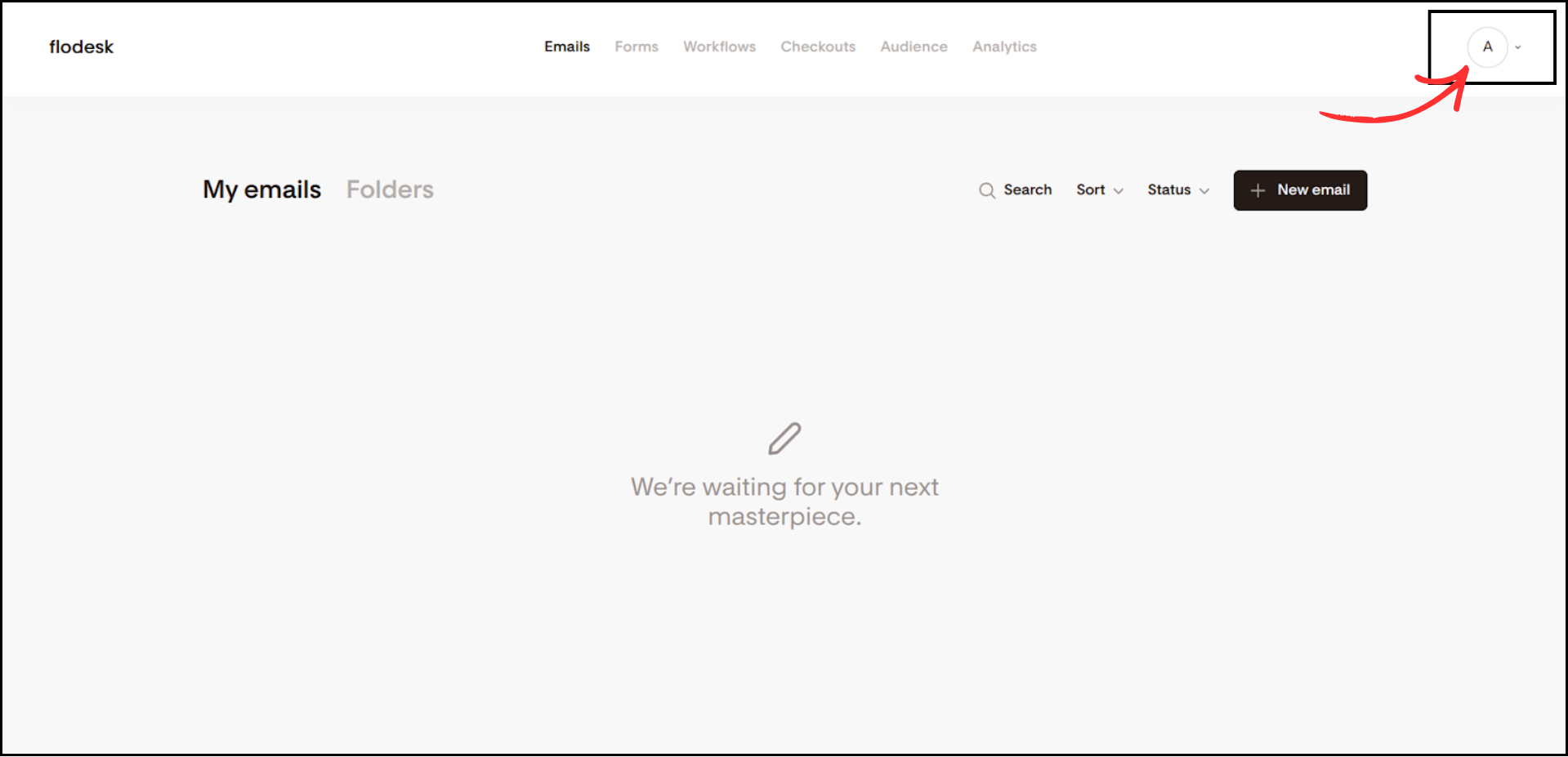
Click on your profile icon in the top-right corner
-
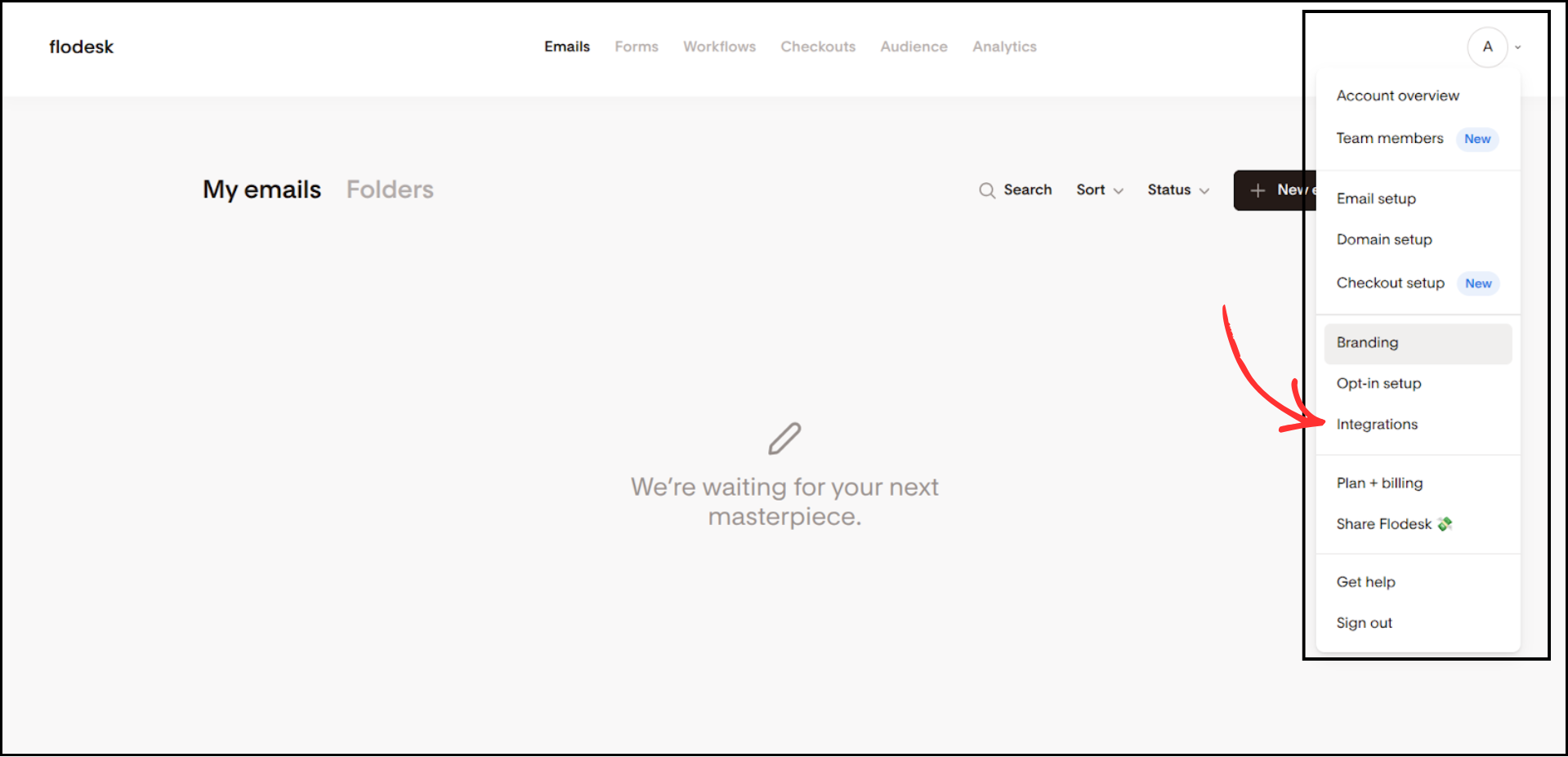
From the dropdown menu, click on Integrations
Step 2: Get Your API Key from Flodesk
-
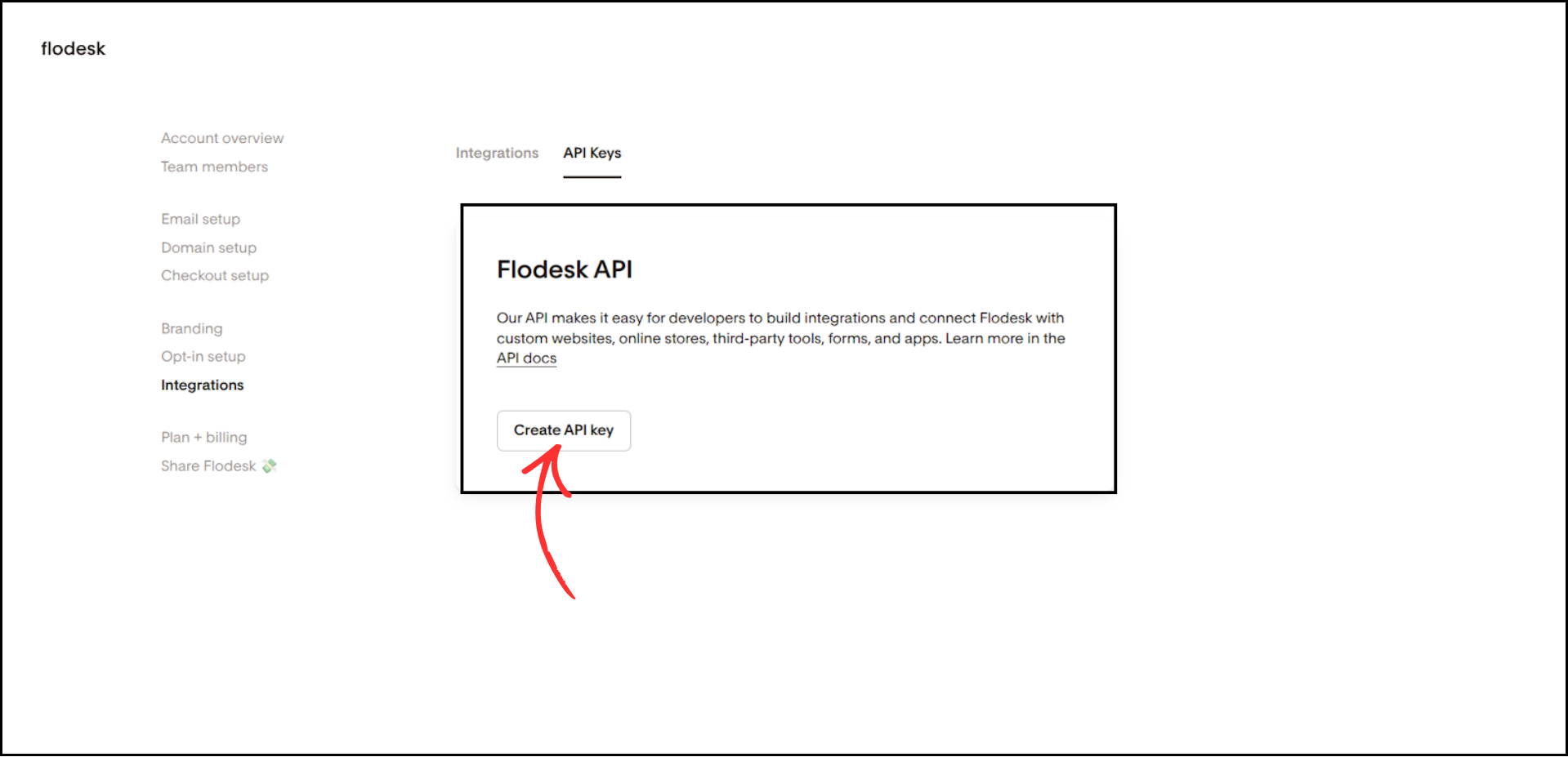
On the Integrations page, click on the API Keys tab

-
Click Create API key
-
Copy the newly generated API Key and save it in a safe place
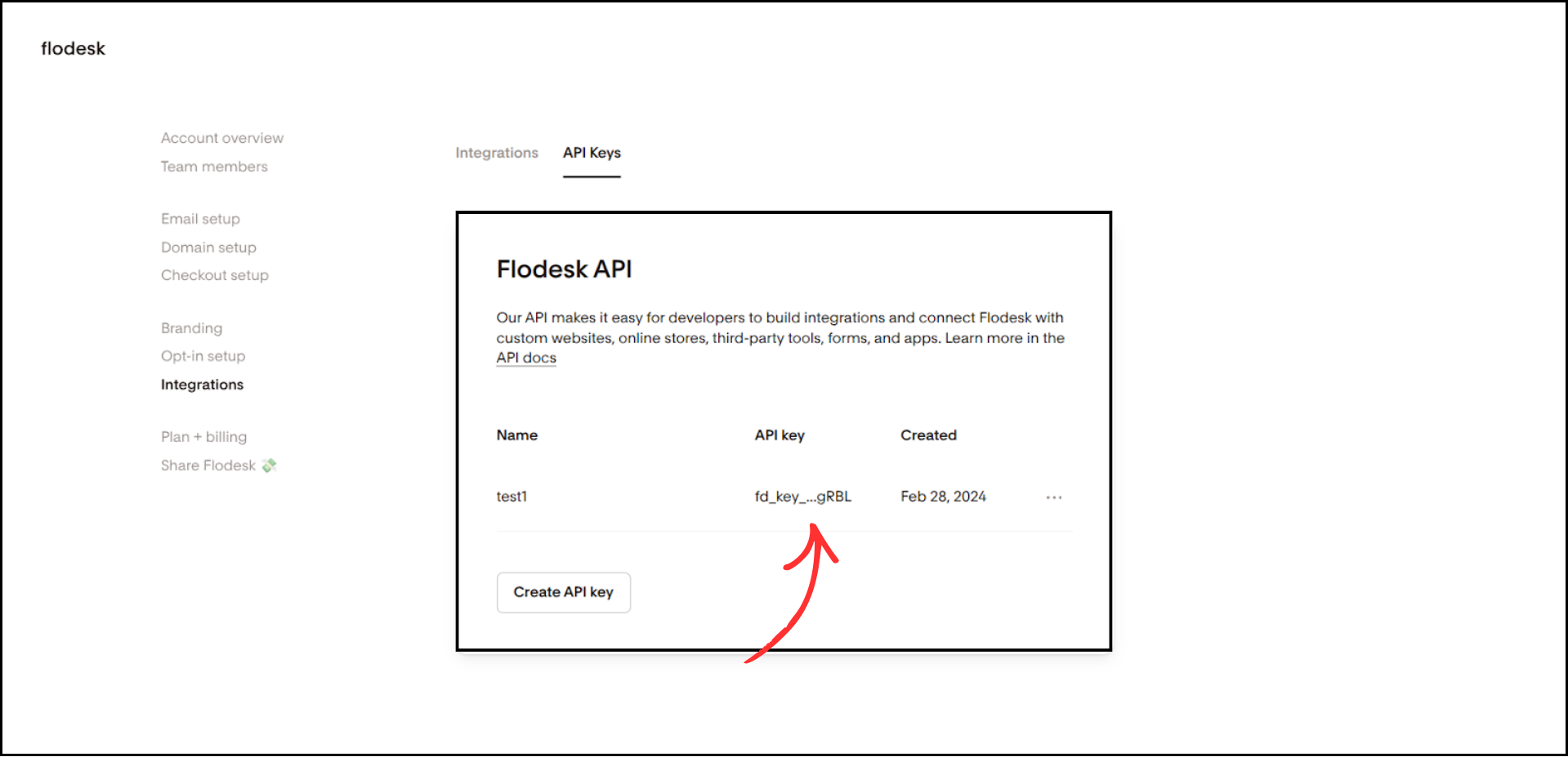

Important: Save your API key securely. You will need it in the next steps.
Step 3: Create a Segment in Flodesk and Get the Segment ID
-
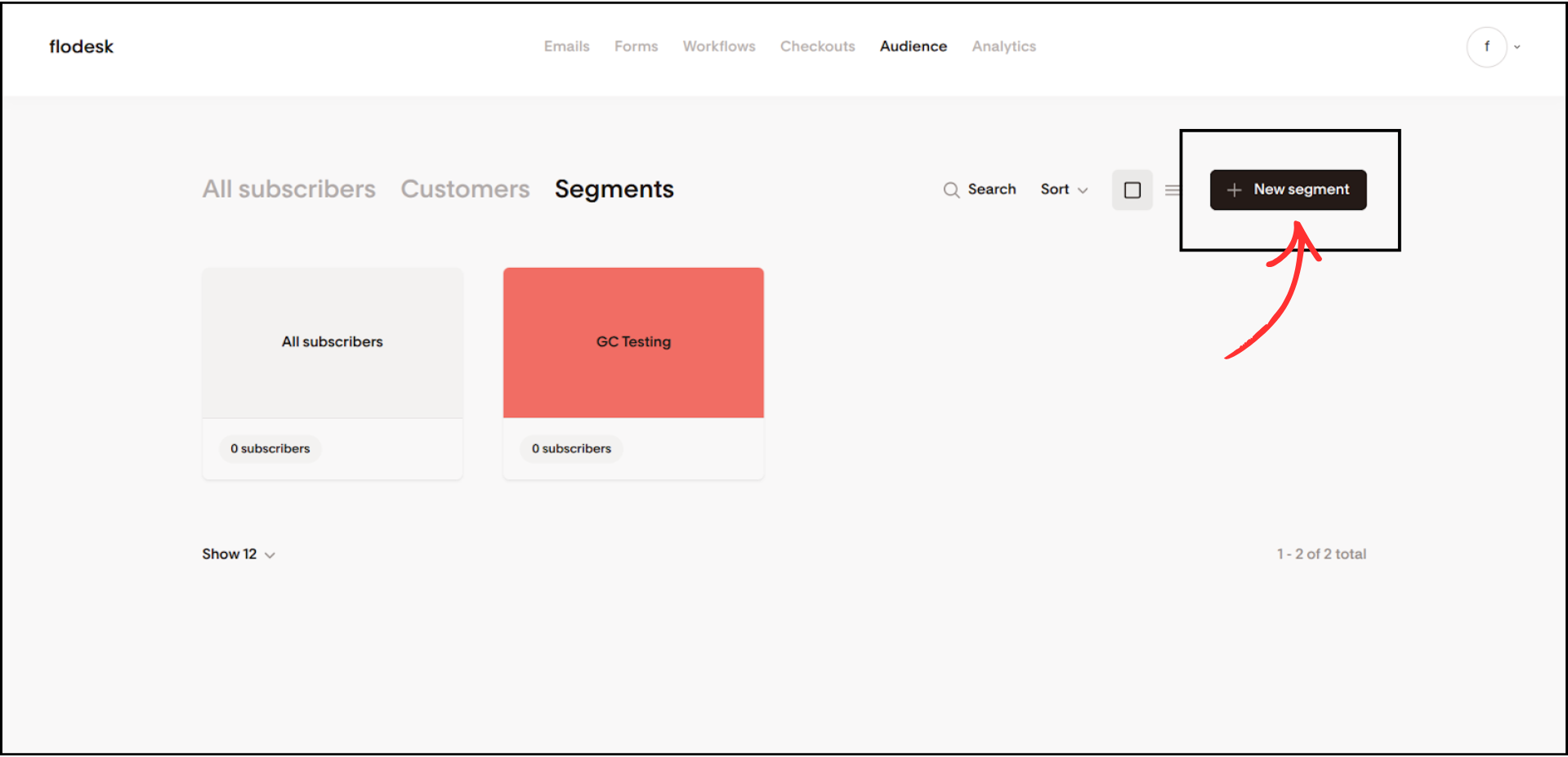
Go back to your Flodesk dashboard and click on Audience in the top navigation

-
Click on the Segments tab

-
Click New segment
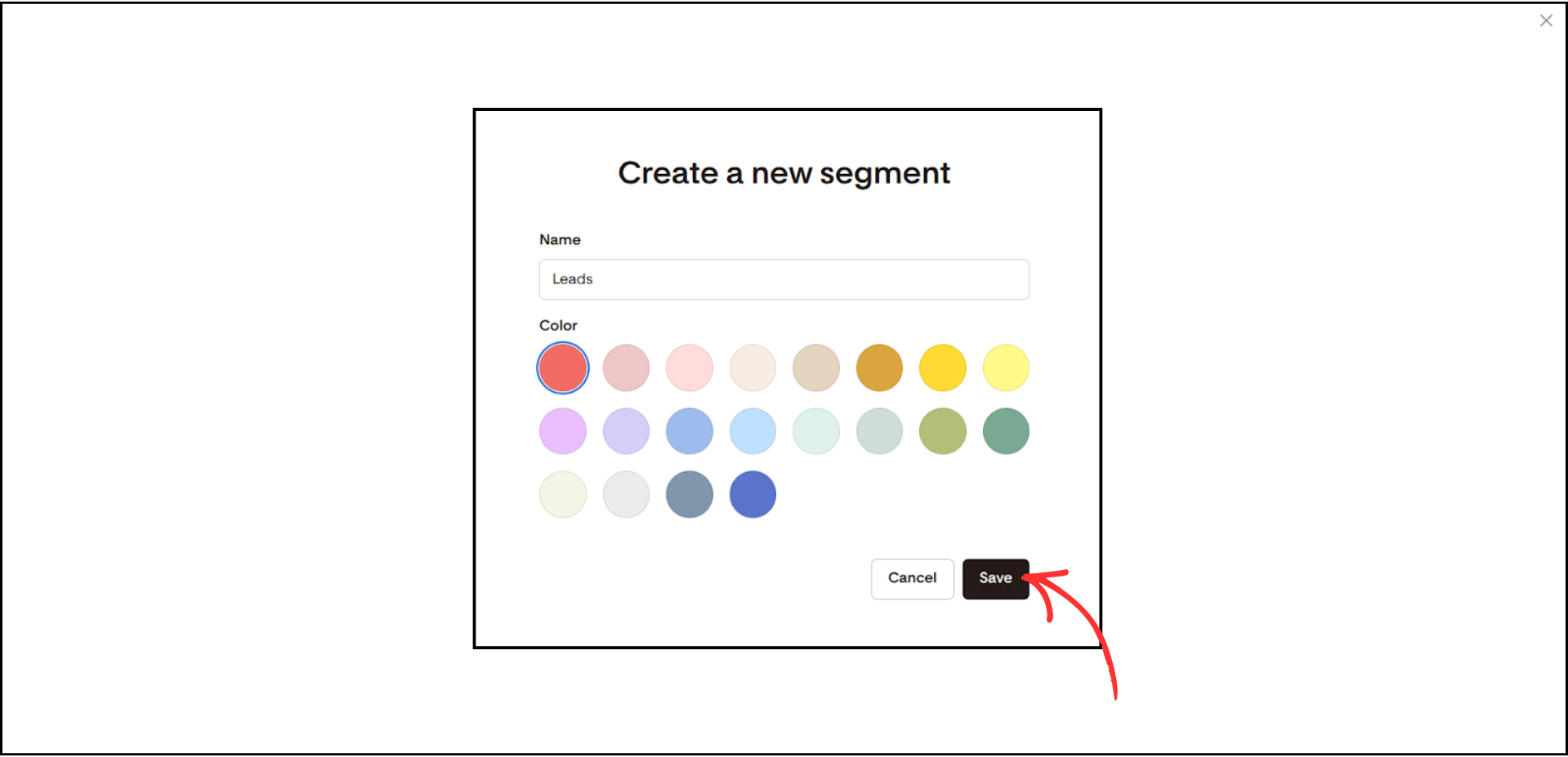
- Enter a name for your segment and choose a color
-
Click Save
-
Open the newly created segment and copy the Segment ID from the browser URL bar. Your URL will look like: https://app.flodesk.com/segment/YOUR_SEGMENT_ID. Copy only the ID part after /segment/ and before ?backTo=


Step 4: Add Flodesk as an Autoresponder in Group Collector
- Log in to your Group Collector dashboard
-
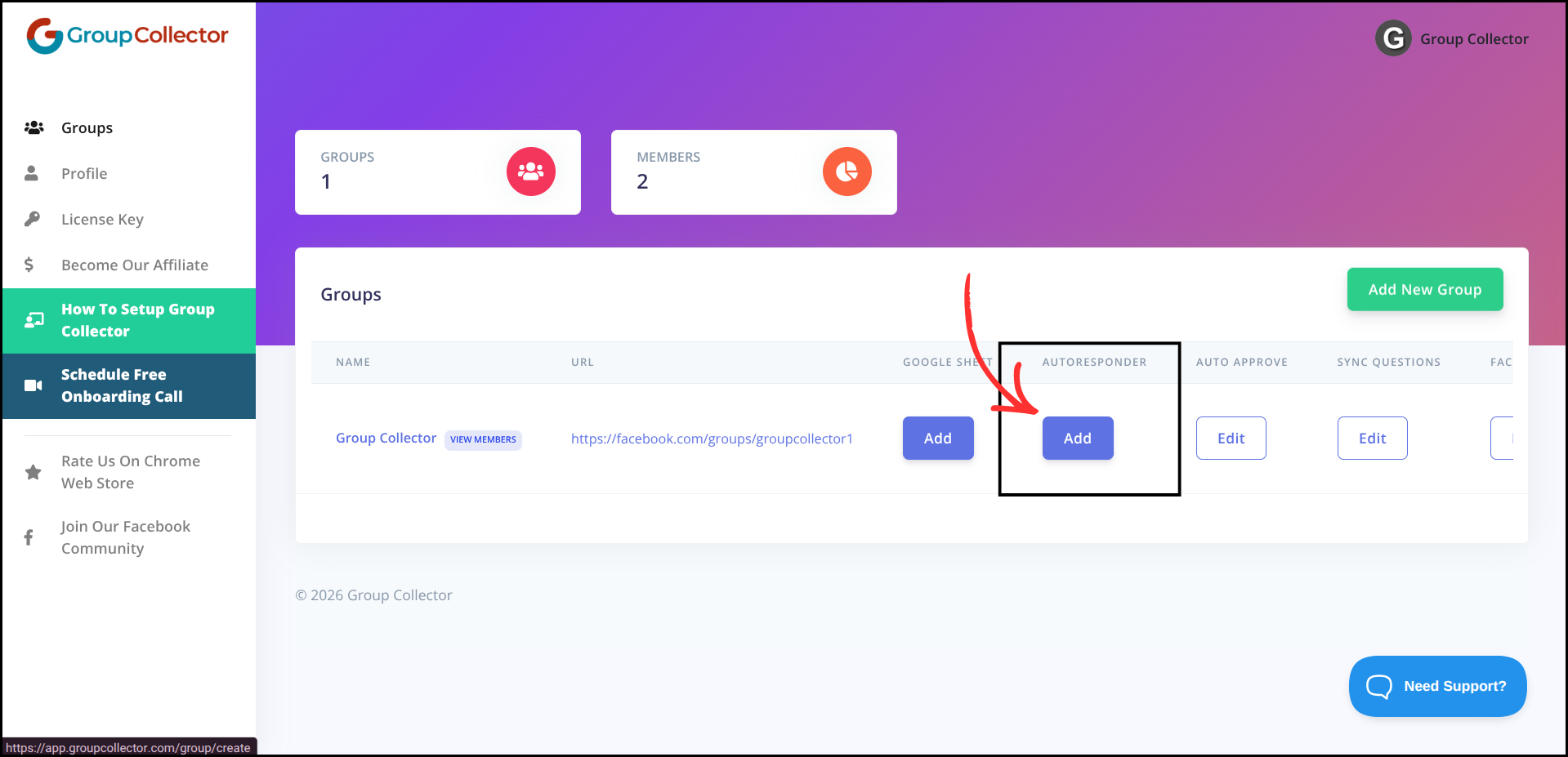
Click Add button for the Autoresponder
-
Select Flodesk from the autoresponder list


Step 5: Enter Your Flodesk Credentials
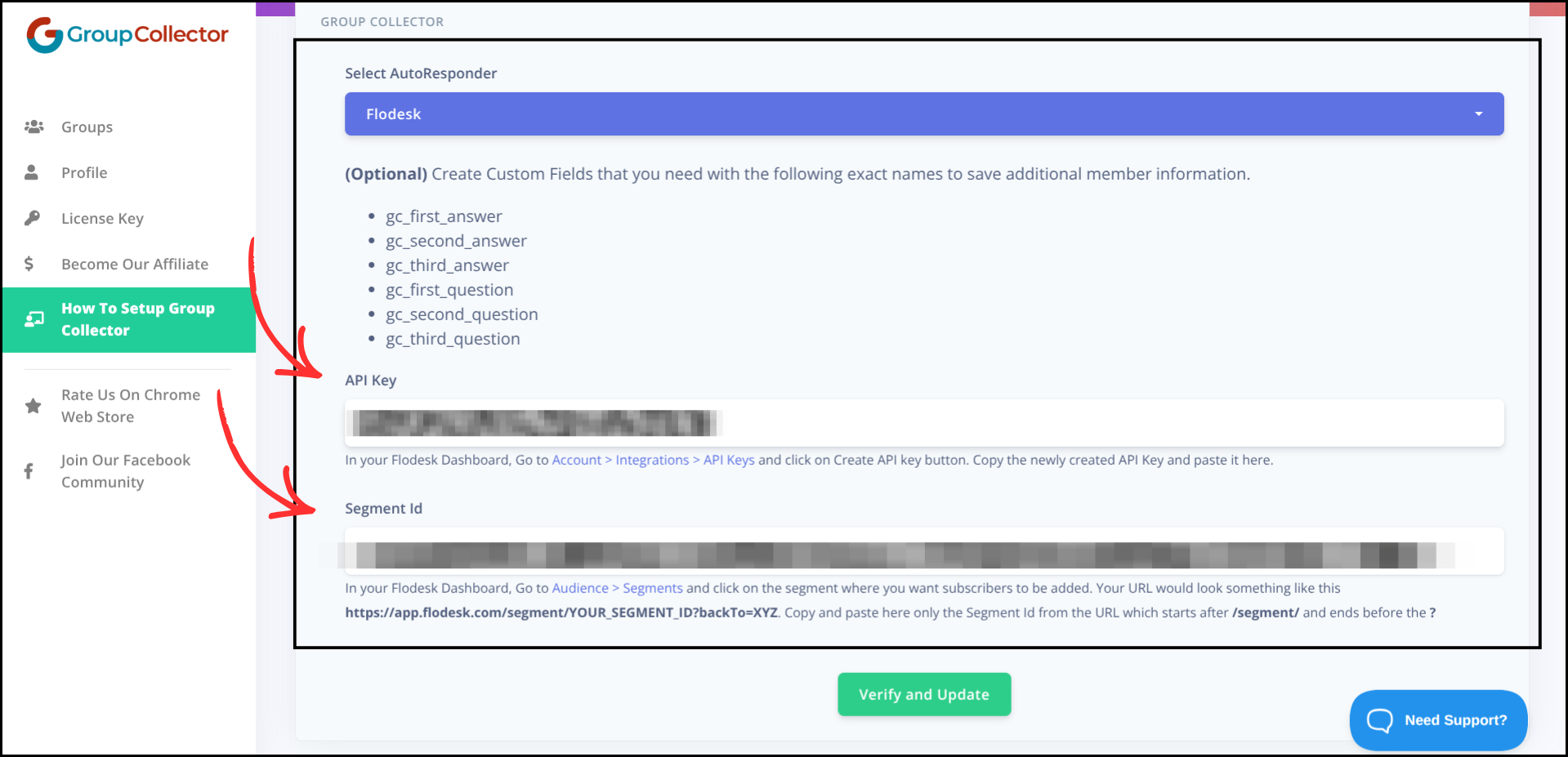
- Paste your API Key into the API Key field
-
Paste your Segment ID into the Segment Id field
-
Click Verify and Update
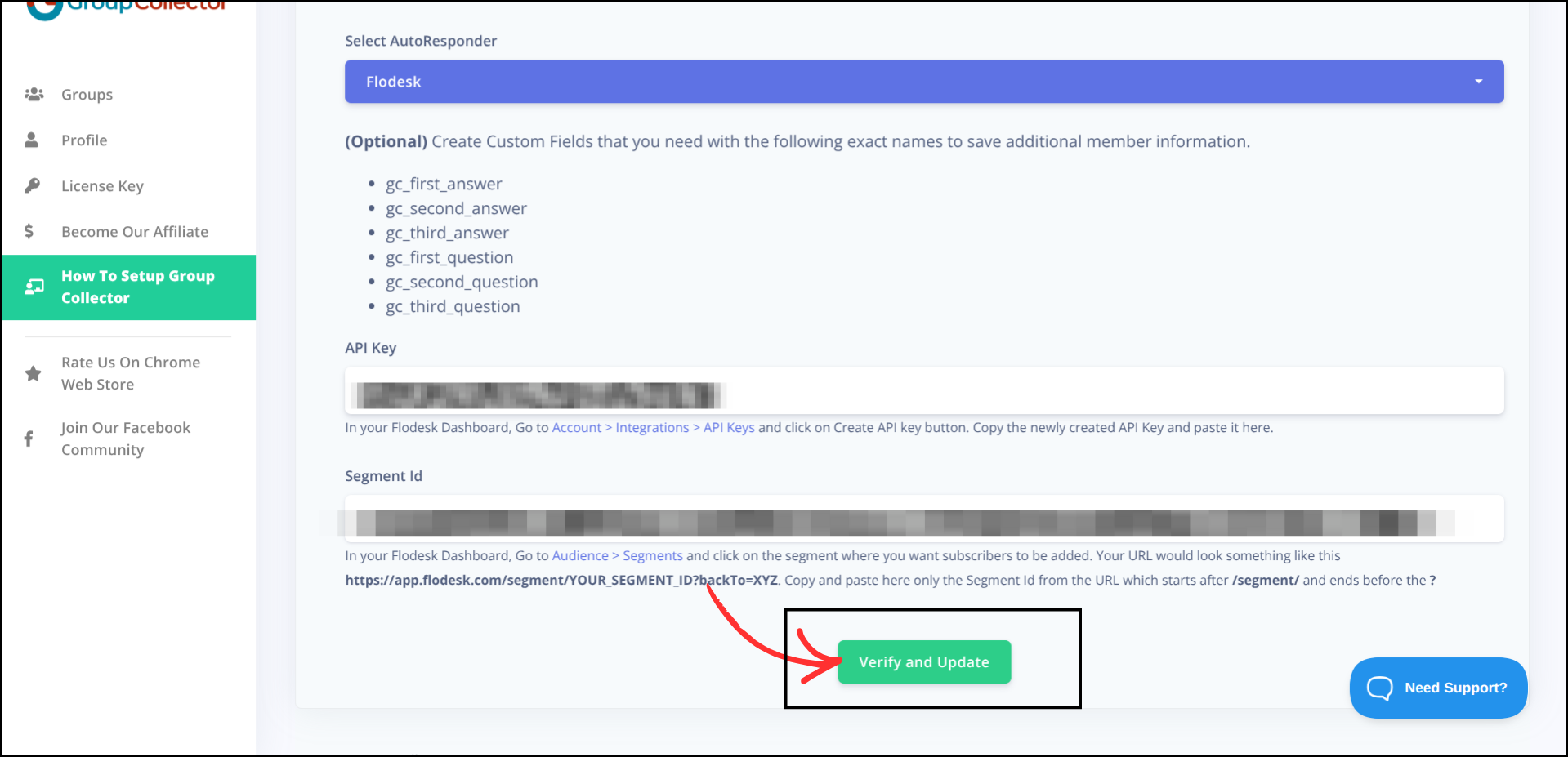
If everything is correct, Group Collector will confirm the connection.
(Optional) Sync Facebook Group Questions and Answers to Flodesk
If your Facebook group uses membership screening questions, you can automatically sync the questions and answers to Flodesk as custom fields. This is useful for segmenting or personalizing emails based on members' responses.
To set this up, create Custom Fields in Flodesk with the following exact names:
- gc_first_answer
- gc_second_answer
- gc_third_answer
- gc_first_question
- gc_second_question
- gc_third_question
Once custom fields are available in Flodesk, Group Collector will automatically populate them when new members are approved.
Final Result
Once the integration is complete:
- Approved Facebook group members are automatically added to your Flodesk segment
- Leads sync in real time
- Subscribers are ready for email campaigns and workflows
- No manual CSV import is required
- Data is also stored in Google Sheets for backup and tracking
Common Mistakes to Avoid
- Copying the wrong Segment ID — make sure you copy only the ID part, not the full URL
- Missing or pasting an incorrect API Key
- Not creating a segment before trying to connect
- Closing the browser before verification completes
- Not testing the integration with a sample member
Best Practices
- Test the integration with a sample approved member
- Use separate segments for different Facebook groups
- Keep API Keys stored securely
- Review integrations periodically to ensure they are working correctly
- Set up email workflows in Flodesk to welcome new subscribers