
How to Connect Group Collector with GetResponse
If you want new members from your Facebook group to be automatically added to your GetResponse email list, you need to connect Group Collector with GetResponse.
This integration helps you collect email addresses, save member responses, and start email communication with no manual work.
To complete this integration, you will need:
- A GetResponse API Key
- A GetResponse List Token
This guide will show you how to get both.
Before you start, make sure you have:
- An active GetResponse account
- A group created inside Group Collector
Step 1: Log In to GetResponse
- Log in to your GetResponse account.
-
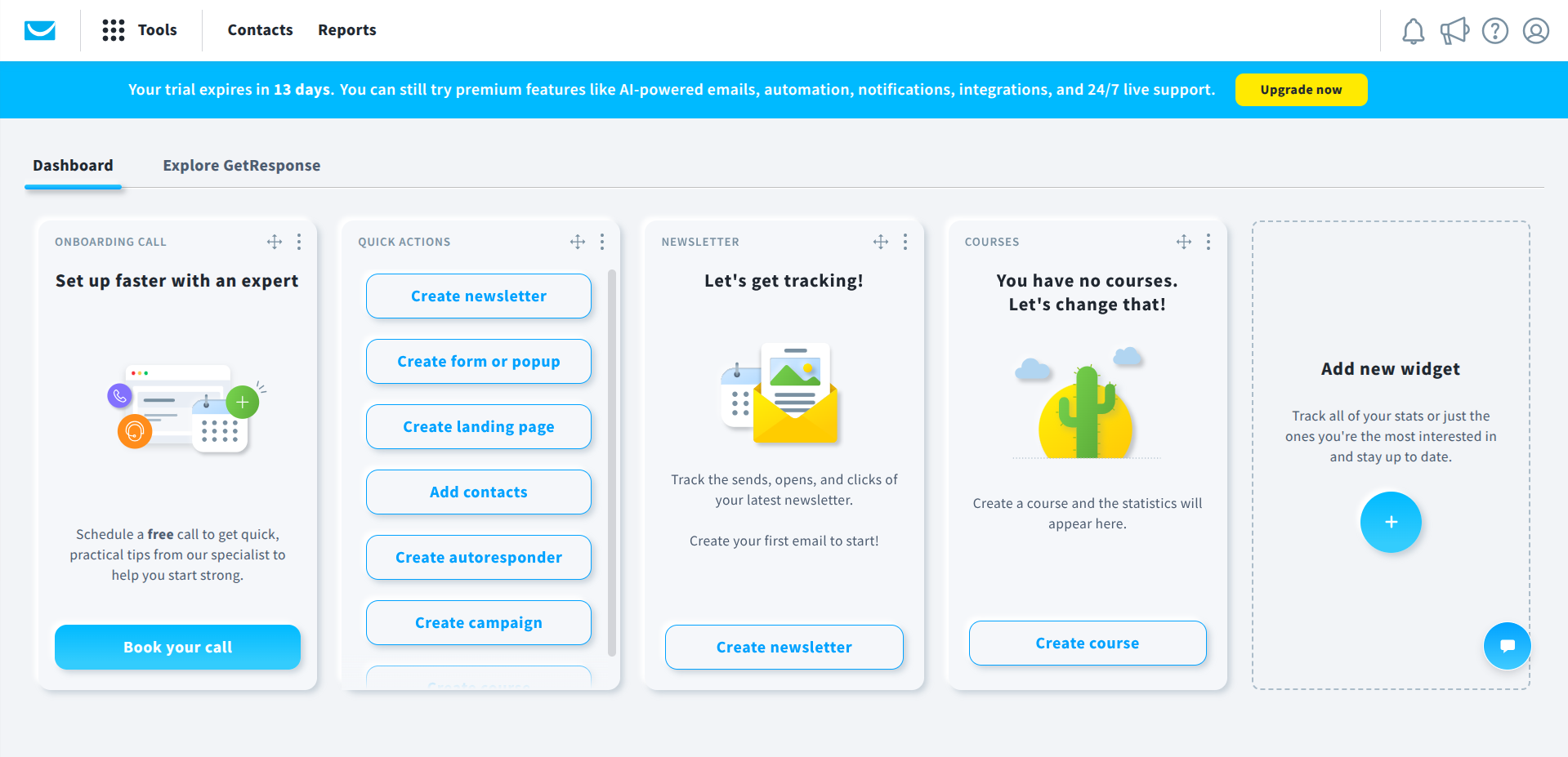
After logging in, you will land on the GetResponse dashboard.
Step 2: Generate Your GetResponse API Key
From the top menu bar:
-
Click on Tools.

-
Under Tools, select Integrations & API.

-
You will be taken to the Integrations & API dashboard. Click on Generate API Key.
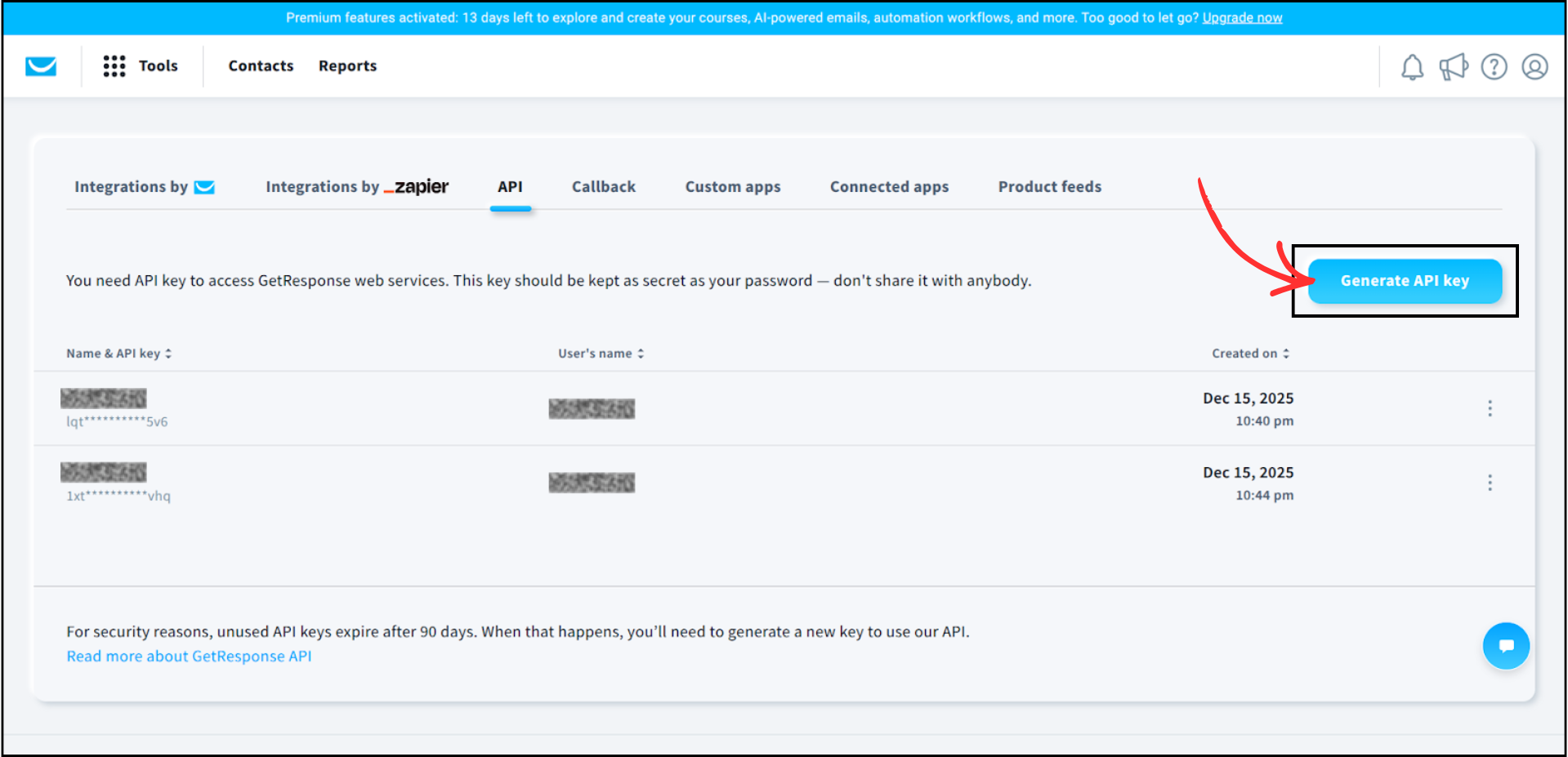
- Enter any name you like (for example: Leads).
-
Click Generate.

-
Your API Key will be created. Copy the API Key and paste it into your clipboard or Notepad—you will need it shortly.


Step 3: Create a List in GetResponse
Now you need a list where you can add your contacts.
-
Click on Contacts from the top menu.

- The Contacts dashboard will open.
-
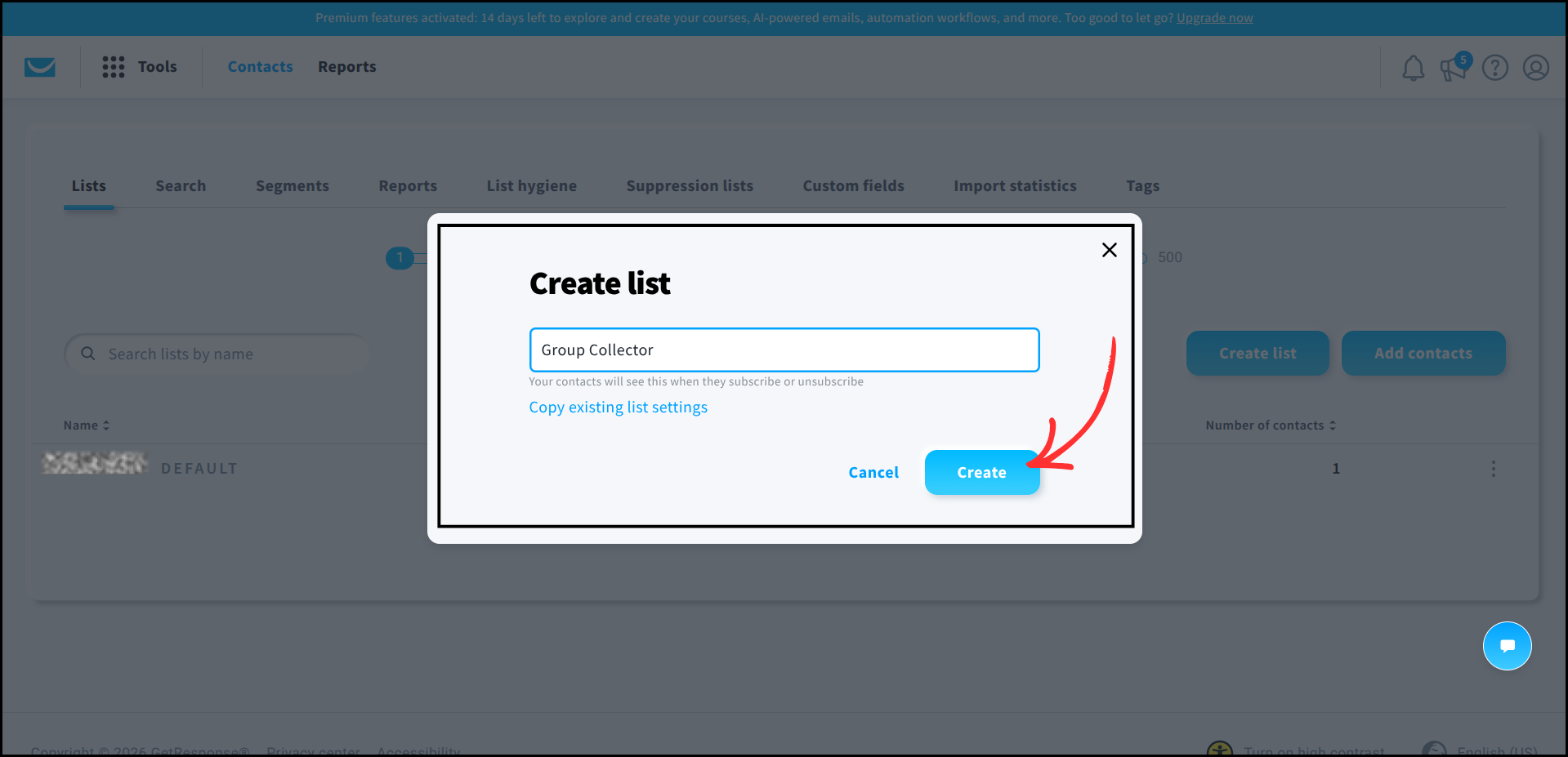
Click on Create List.

- Enter a list name (you can name it anything you like).
-
Click Create.


Step 4: Find the List Token
After creating the list, you need to find its List Token.
-
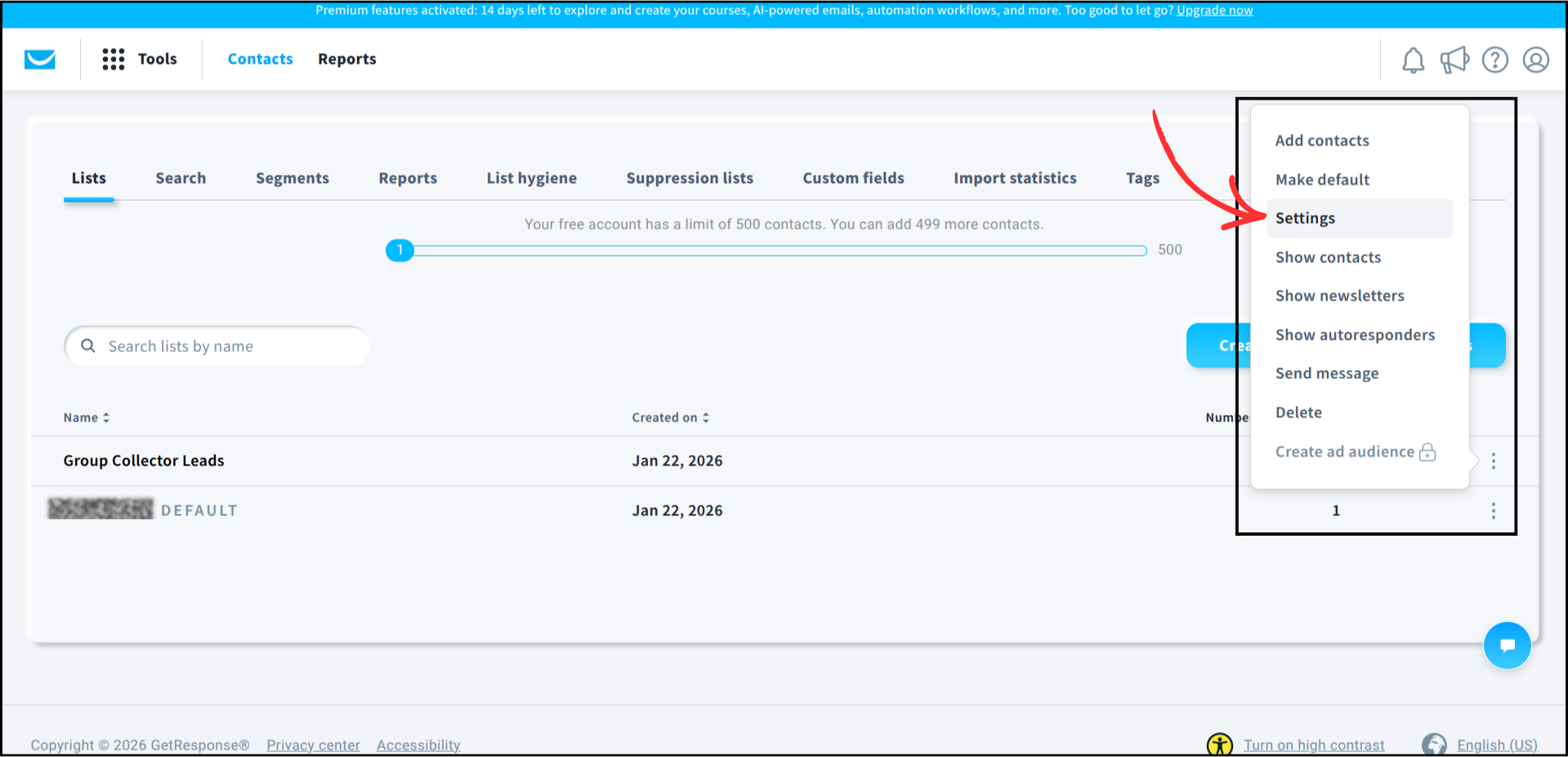
On the Lists page, locate the list you just created.
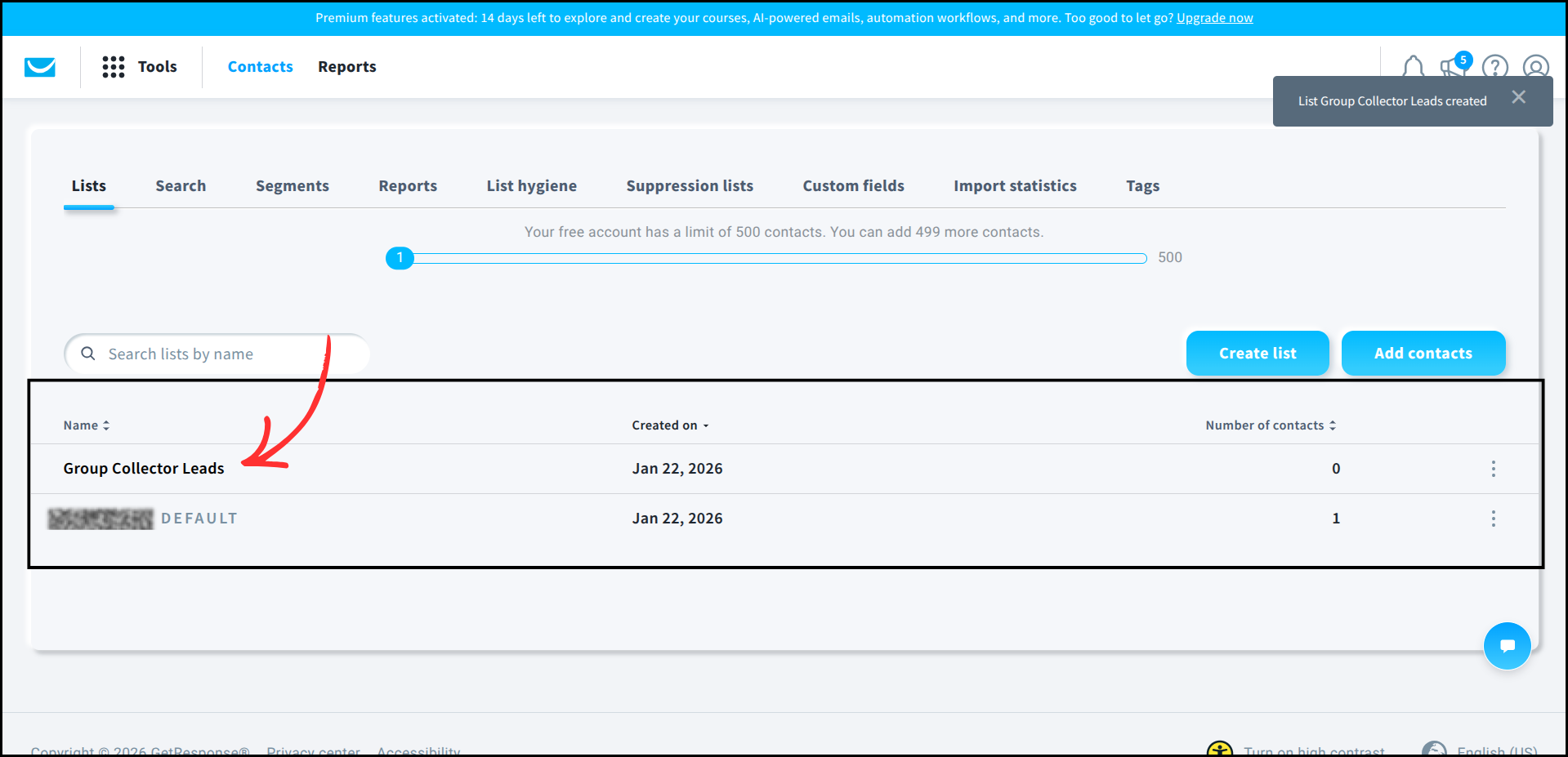
- Click the Actions icon (three dots) next to the list name.
-
Select Settings from the actions menu.
-
In the General tab, you will find the List Token value displayed below the List name field. Copy this token.


Step 5: Connect GetResponse Inside Group Collector
Now open your Group Collector dashboard.
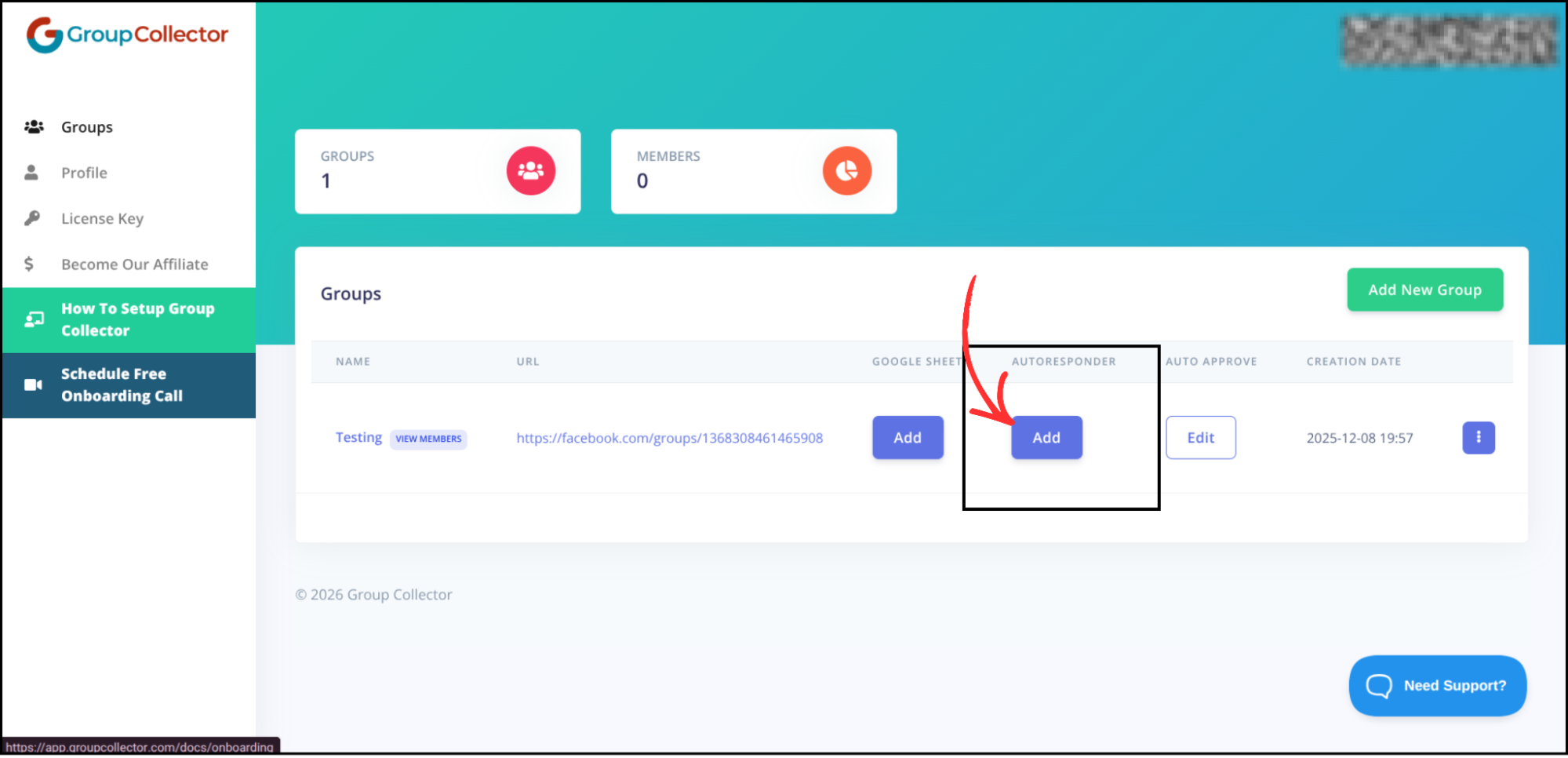
- Open the group you want to connect.
-
Under Autoresponder, click the Add button for the Autoresponder.
-
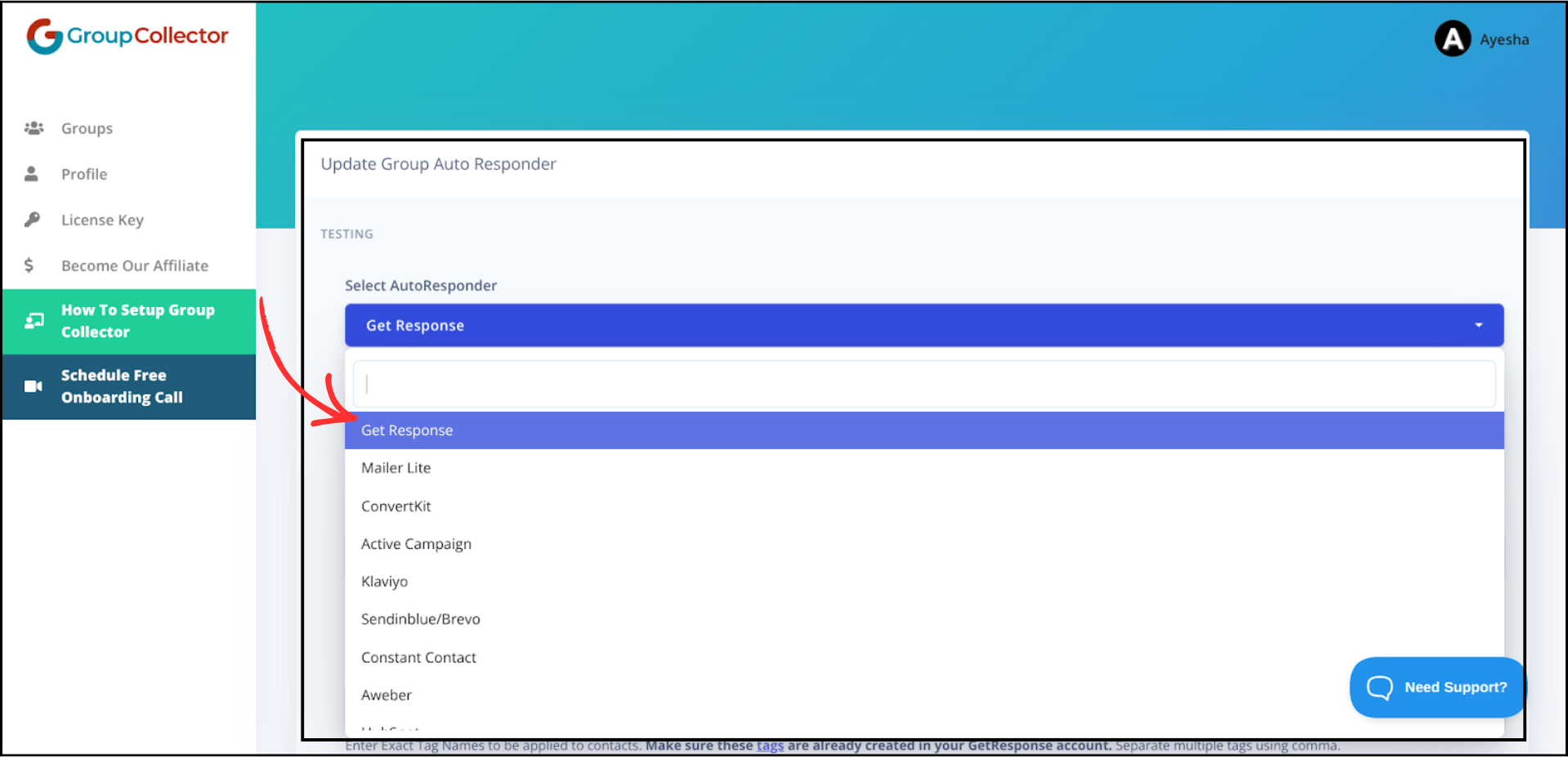
Select Get Response from the dropdown menu.
- Enter the following details:
- Paste your GetResponse API Key
- Enter your List Token (the token you copied from the list settings)
-
Enter tag names (optional). Make sure these tags are already created in your GetResponse account. Separate multiple tags using a comma

-
Click Verify and Update.
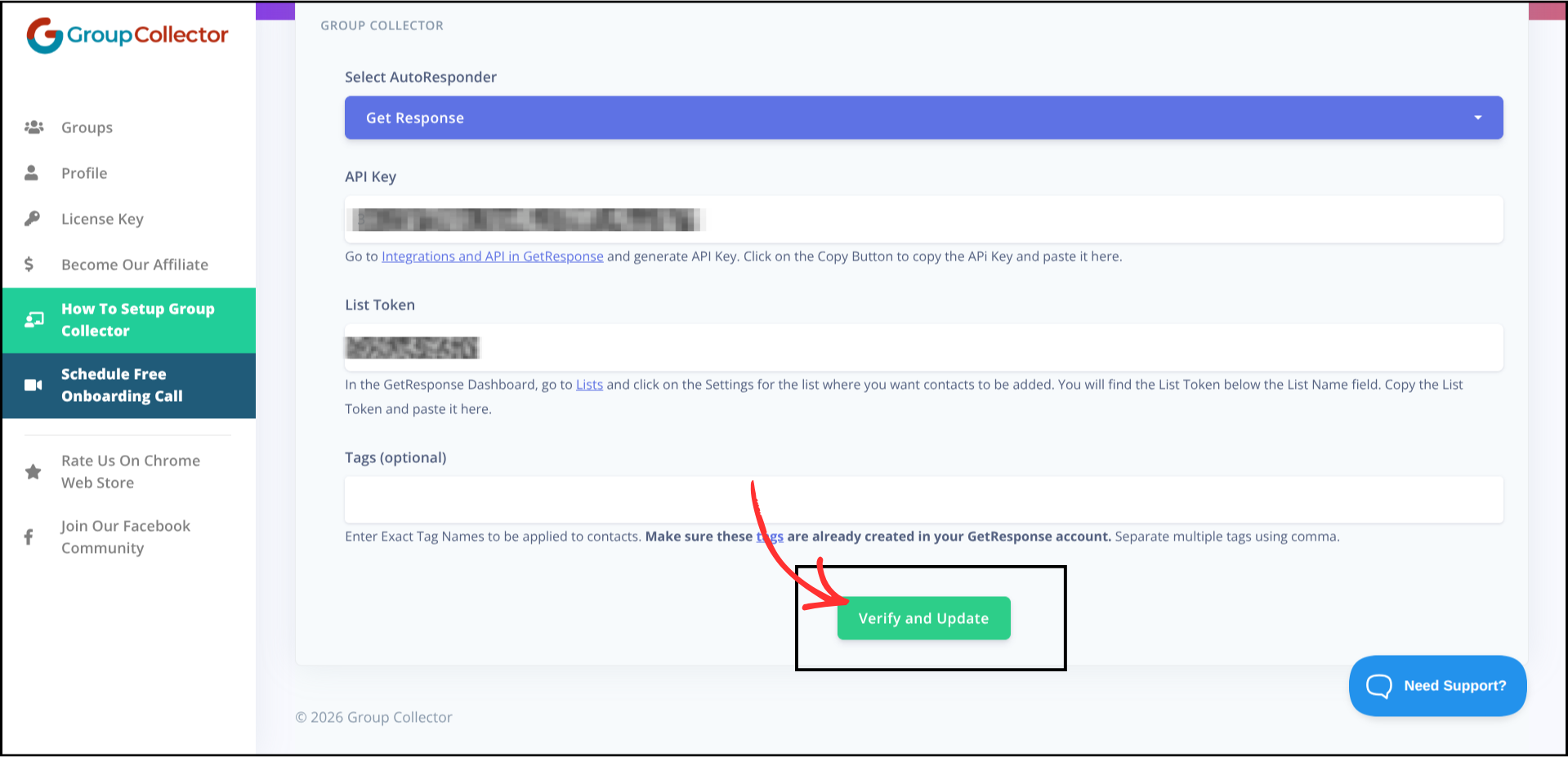
- If the details are correct, Group Collector will confirm the connection.

Final Result
Once the integration is complete:
- Approved Facebook group members are automatically added to GetResponse.
- Emails and membership answers sync in real time.
- Contacts are stored inside your selected GetResponse list.
- Subscribers are ready for email campaigns and automation.
- No manual CSV import is required.
Common Mistakes to Avoid
- Using the list name instead of the List Token.
- Copying extra spaces while pasting the API Key or Token.
- Deleting or renaming the list after integration.
- Revoking API access after setup.
- Not testing the integration after connecting.
Best Practices
- Use one API key per integration.
- Test with a sample approved member to verify the connection.
- Create separate lists for different campaigns.
- Review API access periodically.
- Keep membership questions aligned with your email strategy.